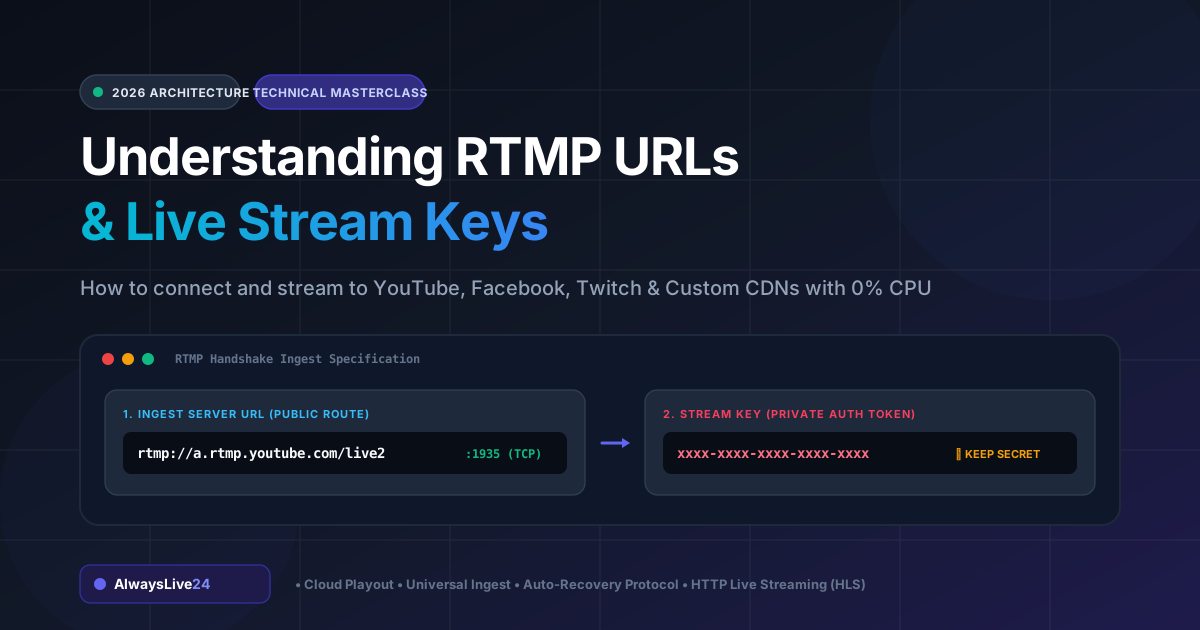
If you have ever clicked Go Live on YouTube, Facebook, Twitch, or Kick, you have undoubtedly encountered two cryptic fields: an RTMP URL and a Stream Key. For many creators, these strings appear as complex technical jargon. But in reality, they form the universal backbone of modern internet broadcasting.
Whether you are running an elaborate multi-camera podcast in OBS Studio or broadcasting a pre-recorded live stream 24/7 from the cloud, understanding how an RTMP URL and stream key work gives you the superpower to stream to any platform, anywhere, at any time—without being locked into proprietary walled gardens.
In this technical masterclass, we will demystify the Real-Time Messaging Protocol, dissect the exact anatomy of an ingest URL, show you where to locate your keys across top platforms, and explain how modern cloud platforms like AlwaysLive24 use cloud playout servers to broadcast continuously without keeping your computer turned on.
What is an RTMP URL? (The High-Speed Broadcast Highway)
RTMP stands for Real-Time Messaging Protocol. Originally developed by Macromedia (and later Adobe) for streaming audio and video between Flash Player and a media server, RTMP has evolved into the indisputable industry standard for broadcast ingest.
To grasp how an RTMP stream works, think of making a phone call:
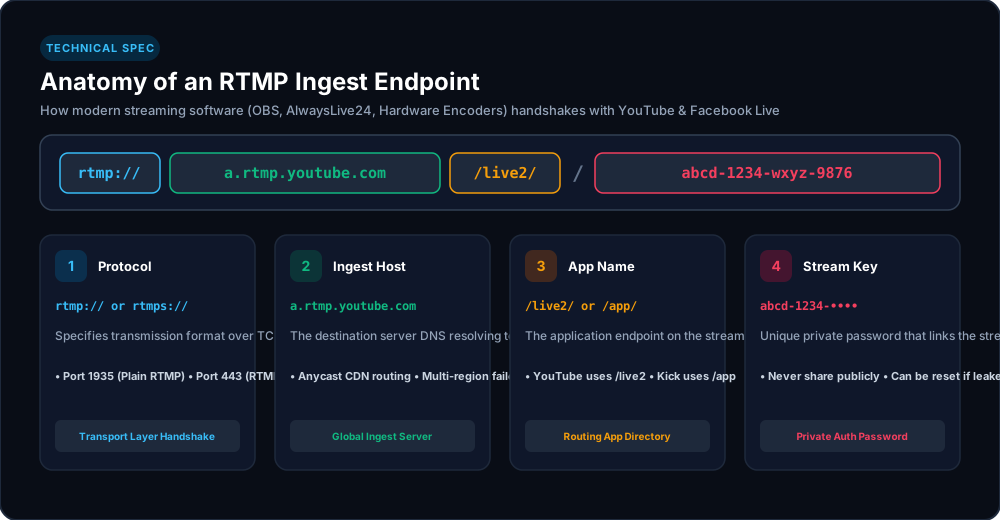
- The RTMP URL (Ingest Server) is the phone number of the broadcast station (e.g., YouTube's global intake data center). It tells your encoder where on the internet to send your audio and video packets.
- The Stream Key is your private security PIN or handshake password. It authenticates your transmission and routes the live feed directly onto your personal YouTube channel or Facebook page, rather than anyone else's.
Together, the RTMP URL and Stream Key form a direct pipeline from your encoder to the platform's Content Delivery Network (CDN).
Anatomy of an RTMP URL: Dissecting the String
When you copy an RTMP endpoint from a platform like YouTube Studio, it typically looks like this:
Let's dissect each component of this address:
1. Protocol Specification (rtmp:// or rtmps://)
This tells the operating system and networking stack which transmission protocol to use. Standard RTMP operates over TCP port 1935. However, modern platforms increasingly enforce RTMPS, which adds a layer of TLS/SSL encryption over TCP port 443 (the standard HTTPS port). RTMPS prevents hackers on public Wi-Fi networks from intercepting or hijacking your live broadcast signal.
2. Ingest Server Hostname (a.rtmp.youtube.com)
This is the domain name of the platform's ingest gateway. When your streaming software initiates a connection, DNS resolves this hostname to the closest geographic edge server using Anycast routing. For example, if you are broadcasting from Mumbai, YouTube routes your packets to an Indian Google data center; if you broadcast from Frankfurt, it routes to a European node.
3. Application Directory (/live2 or /app)
Streaming media software organizes streams into virtual applications. YouTube uses /live2, Kick and Twitch frequently use /app, and Facebook uses /rtmp. This path specifies which internal media ingestion service should process the incoming H.264 video chunks.
4. Stream Key (xxxx-xxxx-xxxx-xxxx)
When combined into a single unified RTMP URI, the stream key is appended to the end of the URL following a trailing slash:
Because the stream key acts as your master broadcast password, never reveal it on stream or share it publicly. Anyone with your stream key can broadcast unauthorized video directly to your viewers without logging into your Google or Facebook account.
RTMP vs HLS vs SRT: How Protocols Differ
A common point of confusion among creators is the difference between RTMP and HTTP Live Streaming (HLS). Why do you send RTMP from your computer, but your viewers watch via HLS?
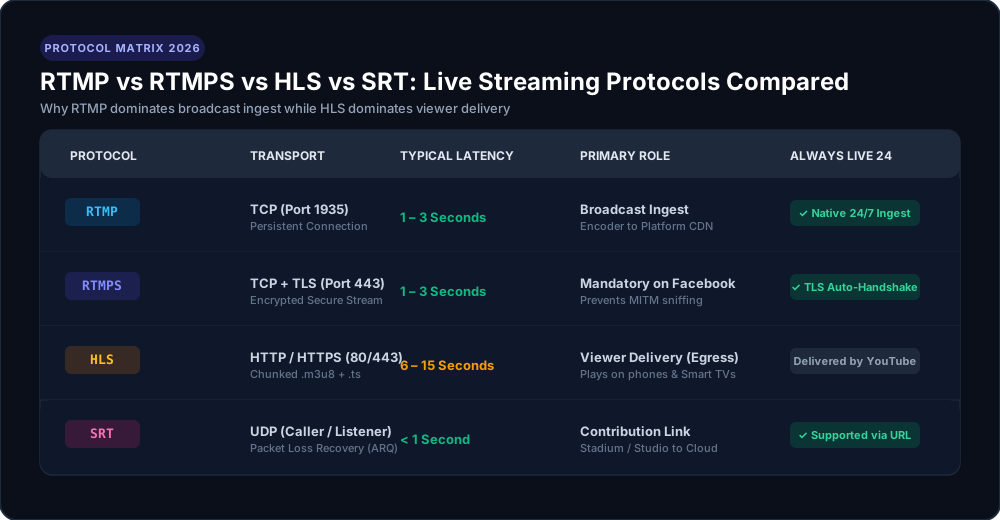
Here is why this two-step architecture exists:
RTMP creates a persistent, stateful TCP pipe. It pushes raw audio/video frames continuously with ultra-low latency (1–2 seconds) from your encoder to YouTube or Facebook. However, raw RTMP cannot scale easily to millions of simultaneous web browsers because modern browsers no longer support Flash plugins.
Once YouTube's video streaming server receives your RTMP feed, it instantly transcodes it into multiple resolutions (1080p, 720p, 480p) and segments it into small chunked files (.m3u8 playlists and .ts or .m4s media segments). This is HTTP Live Streaming (HLS), which can be cached globally by CDNs and played natively on iPhones, Androids, and Smart TVs.
In short: You stream via RTMP into the platform, and the platform delivers via HLS to your audience.
Where to Find RTMP URLs & Stream Keys on Every Platform
Every major live streaming network provides a designated creator dashboard where your unique RTMP credentials are generated:
1. YouTube Live RTMP Credentials
- Navigate to YouTube Studio and click Create > Go Live.
- In the Stream Settings tab, locate the Stream URL:
rtmp://a.rtmp.youtube.com/live2 - Copy your Stream Key (Default stream key). (For a full walkthrough, read our Step-by-Step YouTube Studio Guide).
2. Facebook Live RTMP Credentials
- Open Facebook and navigate to your Page or Group, then click Live Video > Go Live to open Facebook Live Producer.
- Select Streaming Software as your video source.
- Under Stream Software Setup, copy the Server URL:
rtmps://live-api-s.facebook.com:443/rtmp/ - Copy the generated Stream Key. (Tip: Check "Persistent Stream Key" so your key doesn't expire after every broadcast).
3. Twitch & Kick RTMP Credentials
- Twitch: Go to Creator Dashboard > Settings > Stream. Use ingest URL:
rtmp://live.twitch.tv/app/{stream_key} - Kick: Go to Creator Dashboard > Settings > Stream Key. Copy:
rtmps://fa723fc1b171.global-contribute.live-video.net/app/
How AlwaysLive24 Transmits RTMP 24/7 Without Keeping Your PC On
Historically, streaming via RTMP meant running high-load software like OBS Studio on your desktop computer. Your CPU and GPU were trapped at 80%–100% usage encoding H.264 video, heating up your room and crashing whenever your home Wi-Fi flickered. If you turned off your laptop, your live stream abruptly went offline.
Modern cloud streaming architecture eliminates this hardware barrier completely.
With AlwaysLive24, the entire transmission process moves to dedicated, high-availability cloud servers:
- Upload or Link Your Content: Upload your video to your cloud library or paste a direct video link from Google Drive or YouTube. AlwaysLive24 stores it securely on global edge storage.
- Paste Your Target RTMP URL & Key: Enter your YouTube, Facebook, Twitch, or Kick RTMP credentials.
- Enable 24/7 Infinite Loop: Check the Loop Stream option. The cloud playout engine will replay your video continuously without human intervention.
- Zero-CPU Playout: An isolated cloud container runs an optimized broadcast pipeline equipped with auto-recovery flags (
-reconnect 1 -reconnect_at_eof 1). If YouTube has a temporary hiccup, AlwaysLive24 automatically renegotiates the TCP connection within milliseconds.
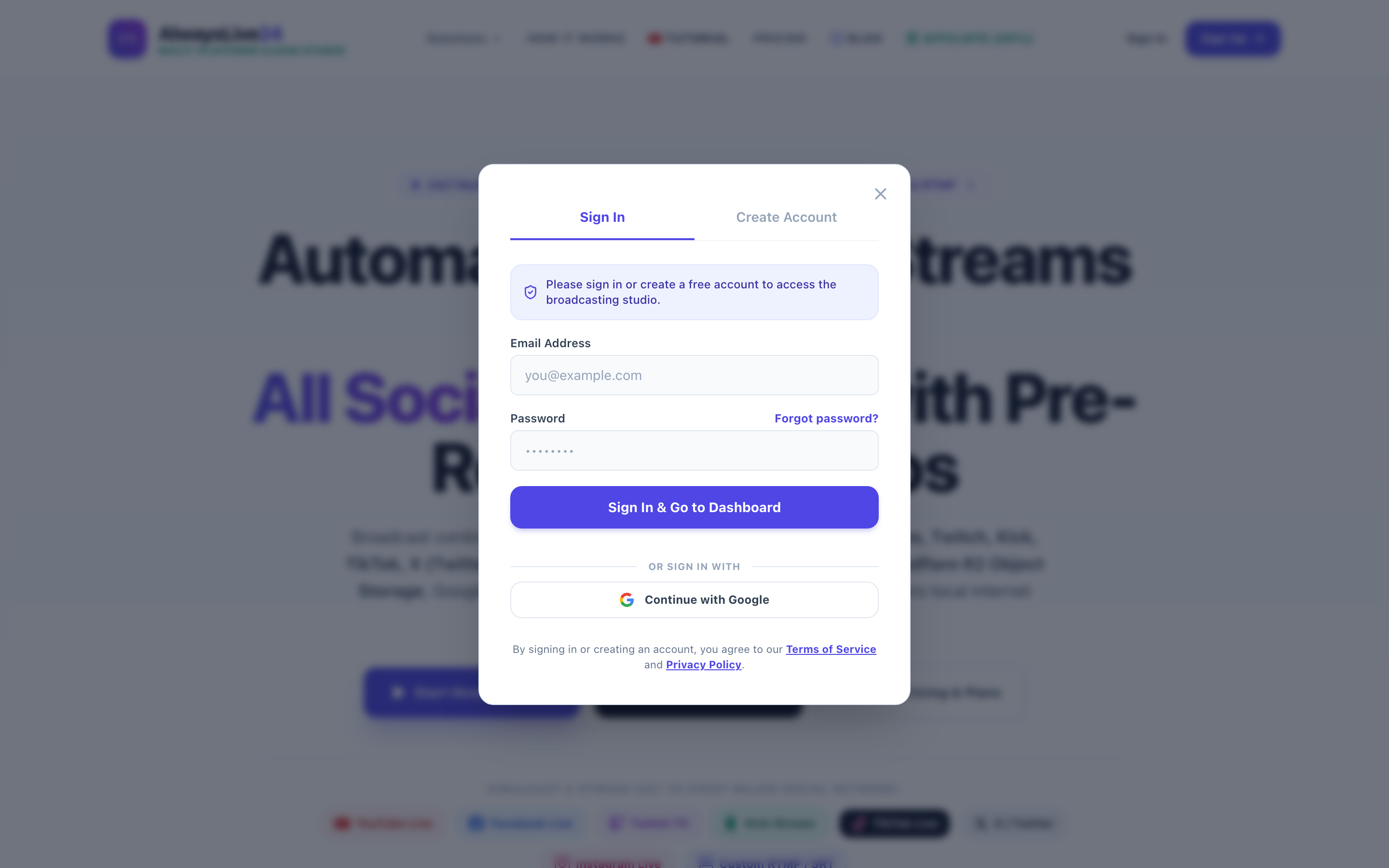
You can close your browser tab, turn off your computer, or go to sleep. Your live broadcast remains 100% active on YouTube or Facebook, gathering subscribers and watch time 24 hours a day, 7 days a week.
Troubleshooting Common RTMP Errors
If you encounter an error when connecting to an RTMP endpoint, here is how to resolve the most frequent issues:
This typically occurs when your local router or ISP firewall blocks TCP Port 1935. Switch your protocol from rtmp:// to rtmps:// with port 443 (which is open on virtually all networks), or broadcast via AlwaysLive24 which operates from enterprise cloud data centers with completely unblocked ports.
This means your previous broadcast session did not terminate cleanly on the platform's side, or you entered an expired stream key. Wait 60 seconds, or go to YouTube/Facebook Studio, reset your stream key, and paste the newly generated token into your encoder.
Platforms like YouTube and Facebook expect a Group of Pictures (GOP) keyframe interval of 2 seconds (e.g., 60 frames at 30fps). AlwaysLive24's automated video optimizer automatically aligns all keyframes to strict 2-second intervals upon ingest so your stream never experiences audio drift or playback stuttering.
Transparent Pricing: Stream via Cloud RTMP for Free
While legacy cloud streaming tools charge between $39 and $89 per month with strict streaming time limits, AlwaysLive24 was built to make 24/7 cloud broadcasting accessible to every creator globally.
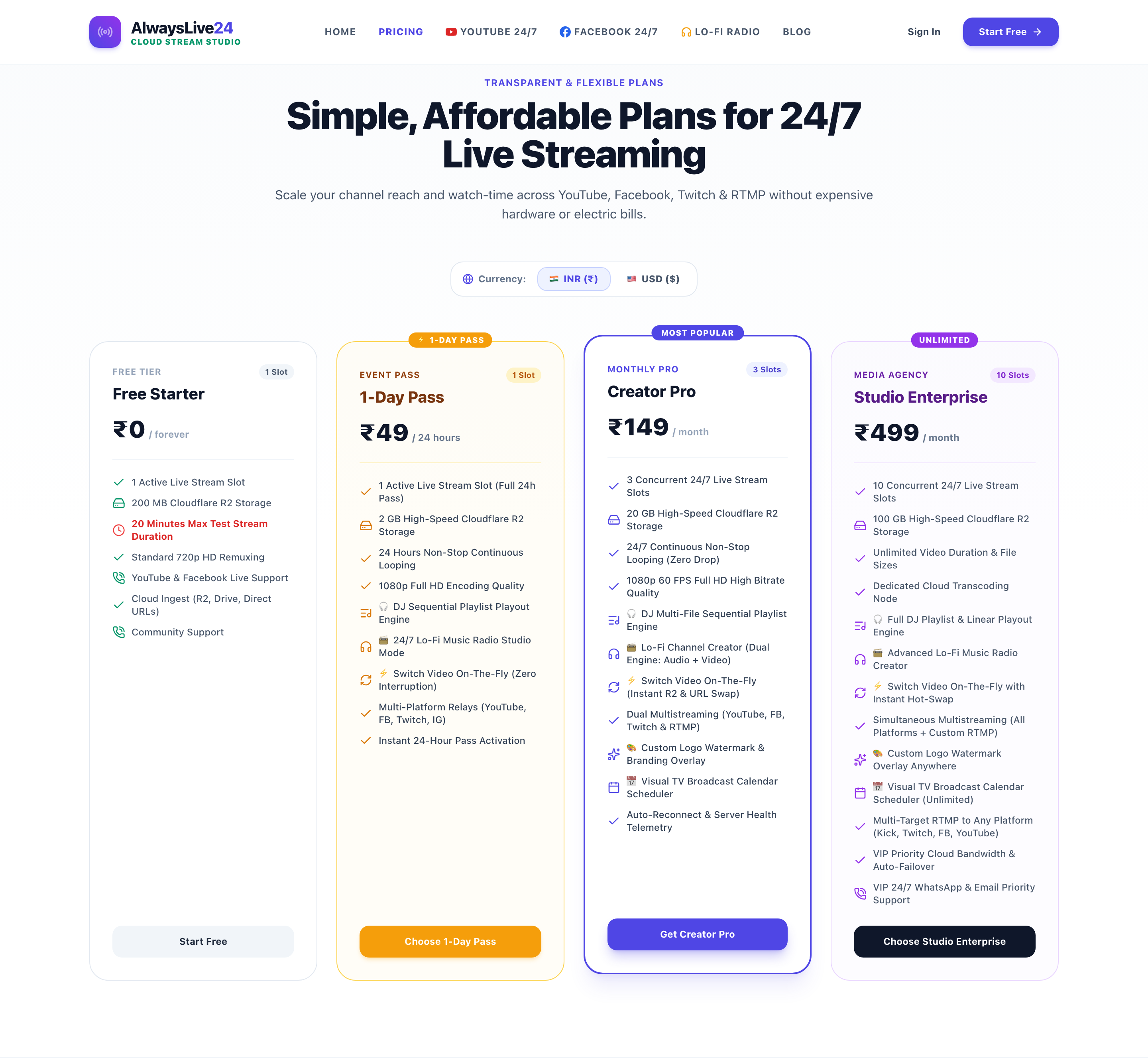
You can get started today with a 100% Free Plan (no credit card required) or unlock multi-slot 24/7 looping with flexible INR and international currency options.
Ready to Broadcast 24/7 via Cloud RTMP?
Stop burning your computer CPU with OBS. Paste your RTMP URL and stream key into AlwaysLive24, loop your videos 24/7, and watch your channel views multiply around the clock.