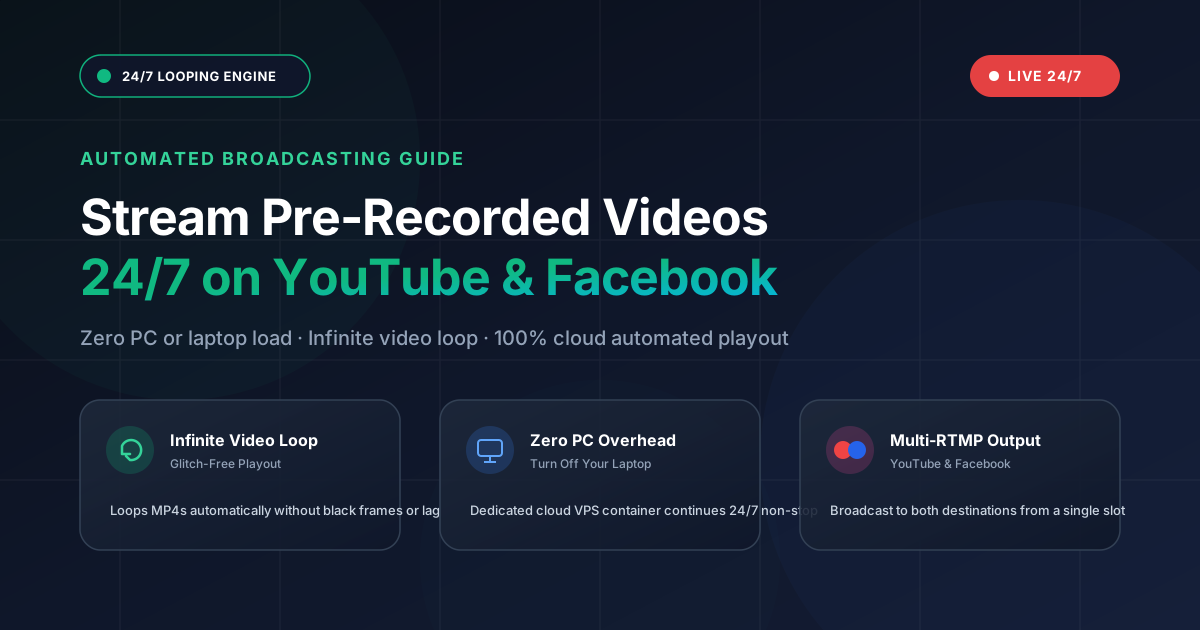
Broadcasting a continuous pre-recorded live stream on YouTube and Facebook is one of the highest-ROI growth strategies for content creators in 2026. Channels streaming 24/7 chill music, ambient backgrounds, webinars, podcast reruns, and devotionals consistently accumulate thousands of watch hours and subscribers around the clock.
However, running traditional desktop software like OBS Studio 24 hours a day forces your computer to run constantly at high GPU/CPU utilization, draining electricity and risking catastrophic stream drops whenever your home Wi-Fi flickers. With modern cloud live stream hosting, you can broadcast an infinite looped live stream directly from high-speed cloud servers with zero load on your personal computer.
- Why 24/7 looped live streams drive 3x more YouTube recommendation traffic.
- How to upload or link pre-recorded videos to cloud storage without consuming PC space.
- How to configure multi-destination RTMP keys for YouTube and Facebook simultaneously.
- How to close your browser and laptop while your stream runs non-stop on 1 Gbps cloud lines.
Why Top Channels Use 24/7 Pre-Recorded Live Streams
YouTube and Facebook algorithms heavily favor active live streams. When you launch a 24 7 live streaming session, the platform grants several algorithmic advantages:
- Live Badge Visibility: Your channel receives the prominent red LIVE badge on subscription feeds and search results.
- Higher Impression Velocity: Live videos appear in the "Live Now" carousel on YouTube mobile and smart TV home screens.
- Continuous Watch-Time Accumulation: A single 24/7 stream slot generates 168 hours of watch time every single week, helping new creators smash the 4,000 watch hours threshold for monetization in record time.
The Big Problem with Running Desktop OBS 24/7
Many creators initially attempt to loop a recorded live stream locally by installing OBS Studio on their laptop or PC. While OBS is powerful for interactive gaming, using it for continuous 24/7 broadcasting creates critical pain points:
- Hardware Strain & Thermal Wear: Running hardware encoding (NVENC / x264) for days causes laptop fans to scream, batteries to swell, and processors to throttle.
- Electricity Bills: A high-spec gaming PC drawing 350W running 24/7 adds noticeable cost to your monthly power bill.
- Dropouts & ISP Fluctuations: If your home internet suffers a 3-second micro-disconnect at 3:00 AM, OBS drops the RTMP connection and YouTube abruptly terminates your live broadcast.
This is where AlwaysLive24 provides a complete game-changer: your video is hosted and broadcast from Tier-3 cloud data centers with redundant 1 Gbps fiber lines and automated stream recovery.
Step-by-Step: Setting Up a 24/7 Pre-Recorded Stream on AlwaysLive24
Setting up your first automated 24/7 broadcast takes less than 2 minutes directly in your web browser. Follow these simple steps:
Step 1: Open the Creation Studio
Log in to your account and click the Create Stream Slot button on the top right of your AlwaysLive24 Dashboard.
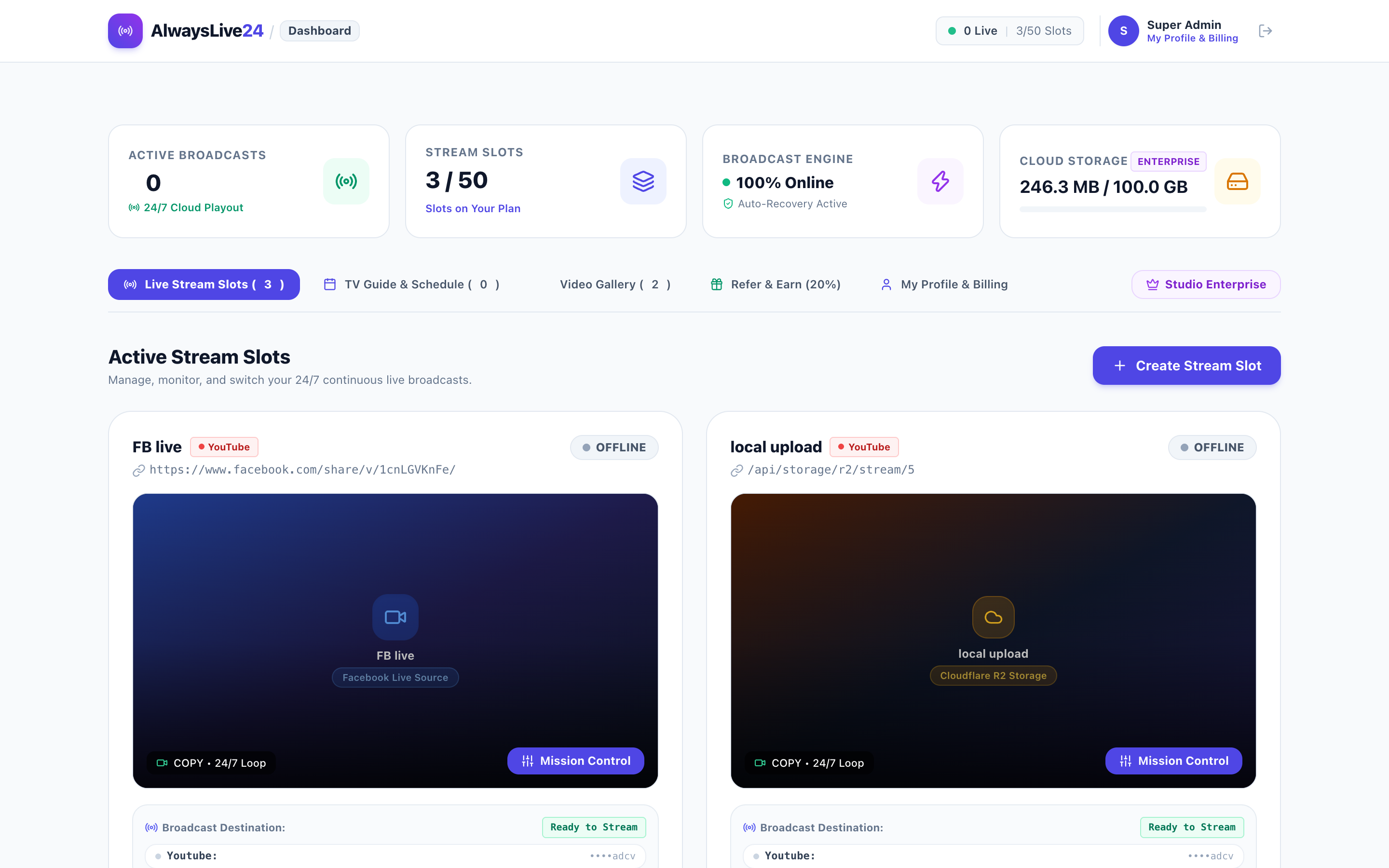
Figure 1: The AlwaysLive24 Stream Slot creator showing Video URL import, 24/7 Infinite Looping checkbox, and Custom RTMP destination keys.
Step 2: Add Your Pre-Recorded Video Source
AlwaysLive24 provides two flexible ways to input your video content:
- Personal Cloud Storage Upload: Upload your MP4 or MKV file directly into your cloud vault (every account includes free storage).
- Direct YouTube / Facebook Link: Paste any public YouTube or Facebook video link. Our cloud extraction engine streams the feed directly from cloud storage with 0 MB consumption of your local PC disk!
Step 3: Enable the 24/7 Infinite Loop Engine
Check the box marked Loop Stream (24/7 Infinite Loop). When enabled, our cloud transcoding engine continuously repeats your video seamlessly without stuttering, black frames, or audio glitches when reaching the end of the file.
Step 4: Connect Your YouTube or Facebook RTMP Stream Key
To connect your live broadcast target:
- Go to your YouTube Live Control Room (or Facebook Live Producer).
- Copy your Stream Key and paste it into the Stream Key field.
- If you want to stream to both platforms at once, click + Add Multi-Stream Destination and enter your Facebook RTMP URL and key.
Step 5: Apply Brand Watermark (Optional) & Go Live
Want to protect your broadcast from content re-uploaders? AlwaysLive24 allows you to overlay your custom PNG logo in the top-right, top-left, bottom-right, or bottom-left corner with adjustable opacity and sizing.
Once configured, click Start Live Stream. Your cloud container initializes in seconds, and your stream will be broadcast in high definition across your channels!
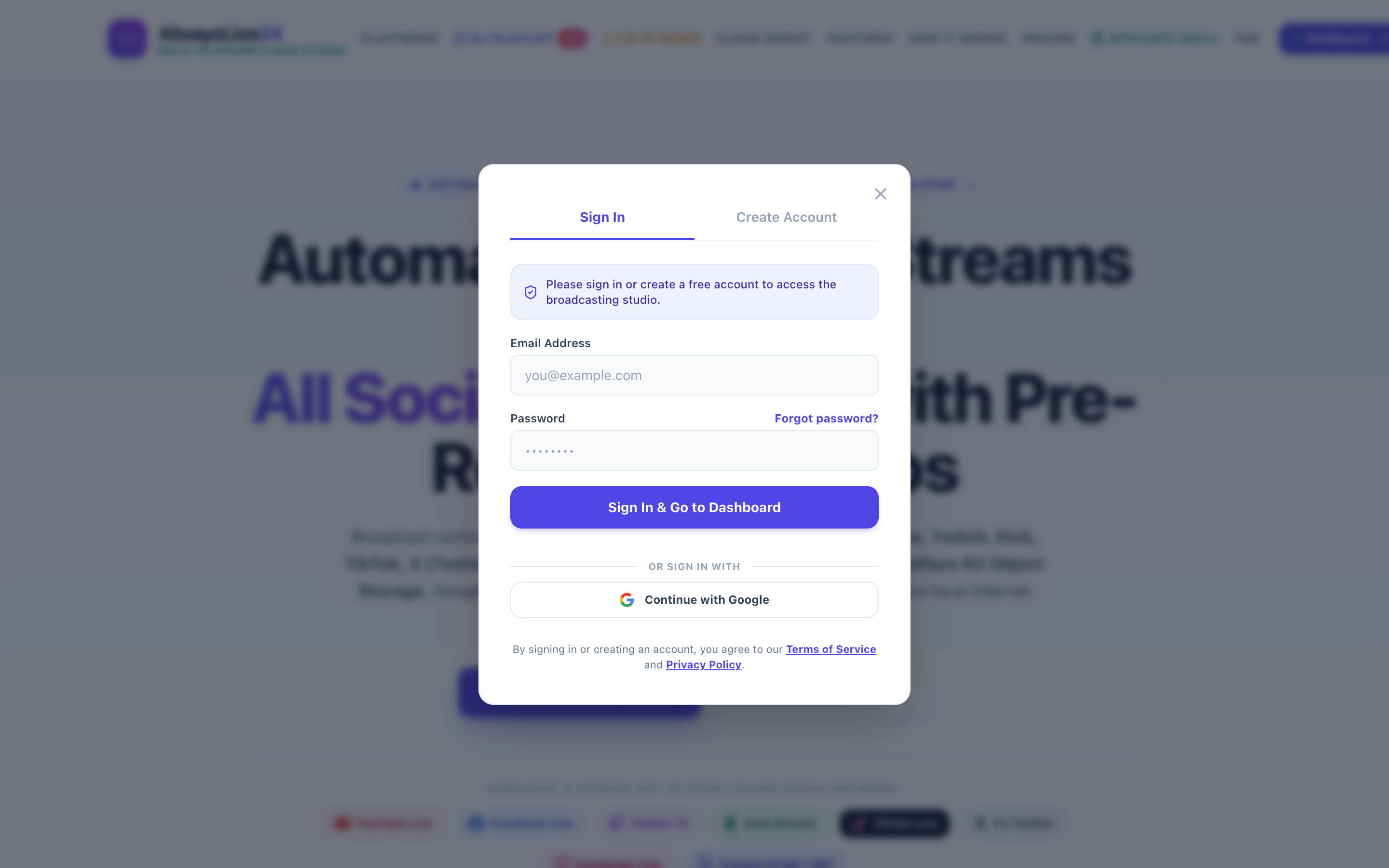
Figure 2: Live broadcast telemetry showing 100% cloud health, realtime bitrate, and automated recovery active.
You Can Shut Down Your PC Now!
Unlike traditional desktop streaming setups, once your stream shows LIVE in the AlwaysLive24 Dashboard, you can safely close your browser tab, turn off your computer, or disconnect from the internet. The dedicated cloud encoder continues broadcasting 24 hours a day, 7 days a week.
Best Practices to Maximize Results with Looped Live Streams
- Use Clean 1080p Encoded MP4s: Encode your pre-recorded video at 1080p 30fps or 60fps with AAC audio at 128kbps or 192kbps for maximum compatibility.
- Pin an Interactive Live Chat Message: Keep viewers engaged by pinning a call-to-action in your YouTube live chat linking to your website or merch.
- Utilize Video Playlists for Variation: If you have multiple videos, use AlwaysLive24's Linear Queue Playlist mode to rotate episodes sequentially before repeating.
Frequently Asked Questions (FAQ)
Does YouTube allow pre-recorded live streams?
Yes! YouTube officially permits pre-recorded video broadcasts as long as you own the rights to the content, comply with YouTube Community Guidelines, and avoid misleading metadata.
What happens if my home internet disconnects?
Nothing! Because the stream is generated and transmitted entirely from AlwaysLive24 cloud servers, your home internet status has zero effect on the broadcast once it is started.
Can I stream to both YouTube and Facebook at the same time?
Yes, AlwaysLive24 supports custom RTMP multi-destinations, allowing you to broadcast to YouTube, Facebook Pages, Twitch, or custom RTMP servers simultaneously from a single slot.
Launch Your 24/7 Cloud Live Stream in Under 2 Minutes
No complex OBS configurations, no hardware overheating, and zero PC load. Get started with the free starter tier today.