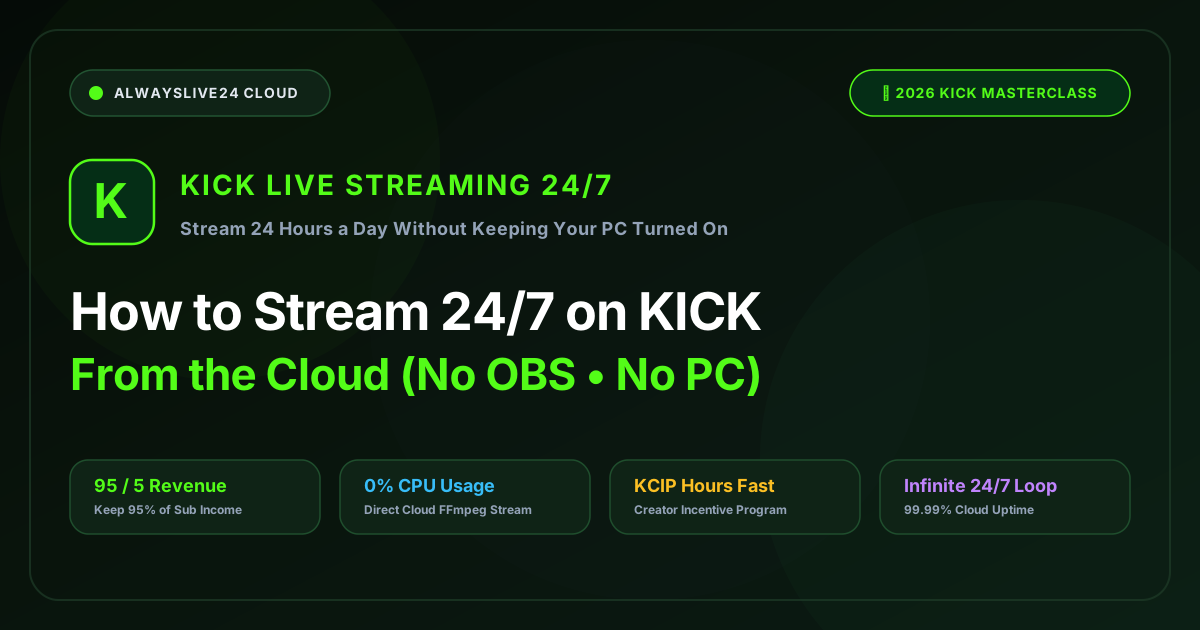
Kick has taken the live streaming world by storm in 2026. With an industry-disrupting 95/5 creator subscription revenue split (where creators keep .75 out of every .00 earned) and the highly lucrative Kick Creator Incentive Program (KCIP) paying hourly broadcast stipends, thousands of streamers are flocking to the platform every single day.
However, the biggest hurdle for creators attempting to establish a dominant presence on Kick is stream consistency. The Kick algorithm heavily promotes channels that maintain uninterrupted broadcast uptime, especially in fast-growing categories like 24/7 Lo-Fi & Chill Music, Gaming Replays & Speedruns, Relaxation & Sleep Streams, and Crypto & Tech Podcasts.
Running an OBS Studio broadcast 24 hours a day, 7 days a week on a home desktop or gaming laptop is a nightmare: massive electricity bills, GPU fan wear-and-tear, thermal throttling, and inevitable stream disconnects when home WiFi drops or Windows forces an automatic reboot.
In this comprehensive guide, we will show you how to stream to Kick 24/7 completely from the cloud using AlwaysLive24. You can upload any pre-recorded MP4 video or audio playlist, configure your Kick credentials, turn off your computer, and let high-speed European cloud servers broadcast your stream on an automated infinite loop with 0% CPU usage and 99.99% uptime.
- 95/5 Revenue Split: Earn nearly double what Twitch pays on subscriptions while streaming around the clock.
- Accelerate KCIP Hours: Rack up the mandatory 50+ monthly broadcast hours without sacrificing your personal sleep schedule.
- Zero Hardware Strain: Completely shut down your PC, Mac, or mobile phone while your Kick channel streams in crisp 1080p 60FPS.
- Automated Reconnect Engine: If Kick or Amazon IVS performs a regional network refresh, AlwaysLive24 automatically re-handshakes within 2 seconds.
- Simultaneous Multistreaming: Stream to Kick, YouTube Live, and Twitch simultaneously with a single click.
Phase 1: How to Find Your Kick Stream URL & Stream Key
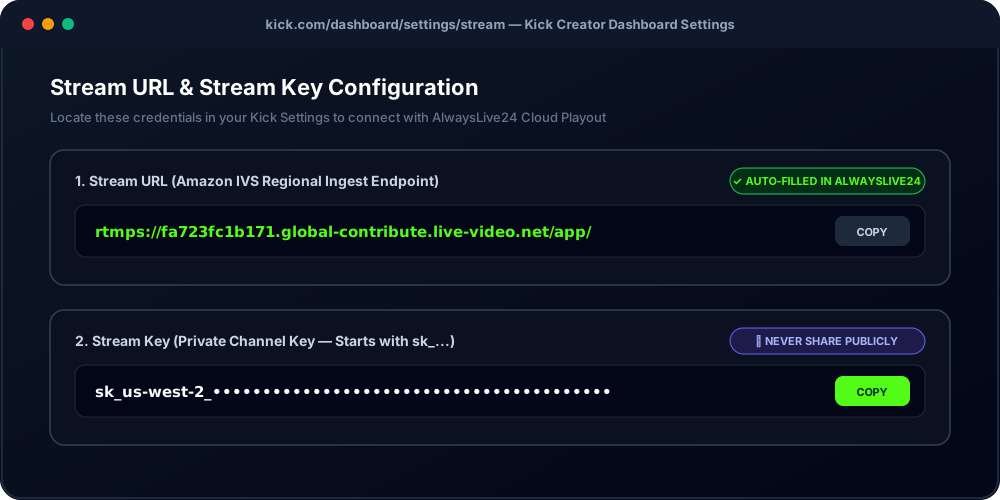
Unlike YouTube, which uses a single global ingest server, Kick streams run on Amazon IVS (Interactive Video Service). Each Kick creator is assigned an ingest endpoint URL and a private channel stream key.
Here is the exact step-by-step procedure to locate your Kick broadcasting credentials:
- Log into your account on Kick.com.
- Click your profile avatar in the top-right corner and select Creator Dashboard.
- In the left sidebar menu, navigate to Settings > Stream (or visit
kick.com/dashboard/settings/streamdirectly). - Under the Stream URL field, copy the server address (typically in the format
rtmps://fa723fc1b171.global-contribute.live-video.net/app/). - Under the Stream Key field, click the eye icon to reveal or the copy button to copy your secret key (which begins with
sk_us-west-2_...).
Phase 2: Setting Up Your Video Source in AlwaysLive24
With your Kick credentials ready, open AlwaysLive24 Dashboard and click the "Create New Stream" button.
AlwaysLive24 provides several convenient ways to feed your live video content directly to the cloud without uploading from your local PC every time:
Upload MP4/MKV video files directly into AlwaysLive24's high-speed NVMe Cloud Storage. Perfect for high-bitrate 1080p gaming VODs and looping animation tracks.
Paste any public Google Drive video link. AlwaysLive24 streams directly from Google's lightning-fast CDN without consuming any local computer bandwidth.
Queue multiple video clips or song tracks. AlwaysLive24 plays them in linear sequence, auto-loops the queue, and supports skipping tracks live on-the-fly.
Phase 3: Configuring the Kick Destination & Smart Auto-Detect
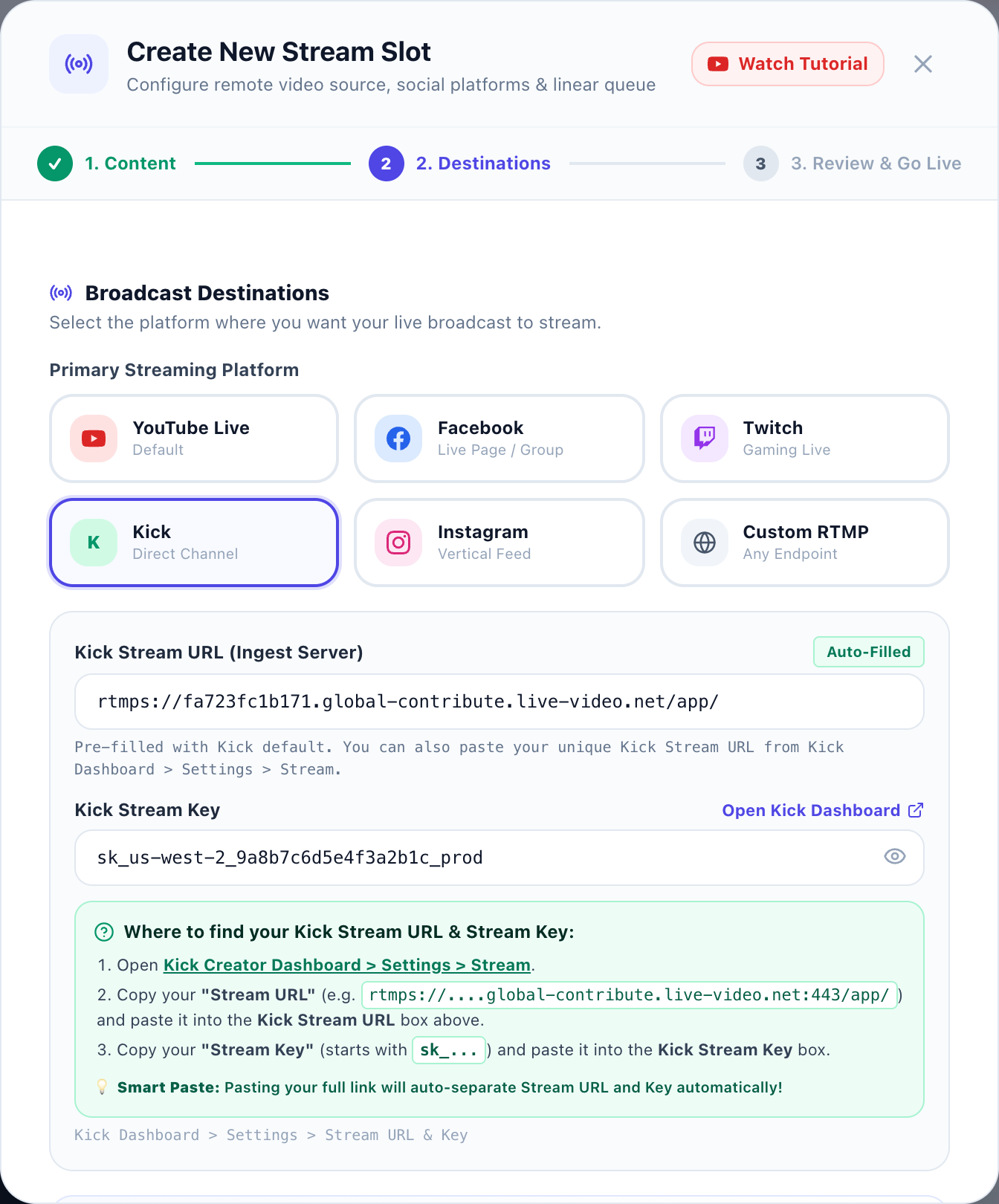
In Step 2 (Destinations) of the stream setup wizard, simply click the Kick tile. AlwaysLive24 is engineered specifically for Kick compatibility:
- Auto-Filled Stream URL: AlwaysLive24 automatically pre-populates Kick's global Amazon IVS ingest URL (
rtmps://fa723fc1b171.global-contribute.live-video.net/app/). You don't have to manually hunt for it. - Smart Key Separation: If you accidentally copy the full URL and key together from Kick, AlwaysLive24's smart parser automatically splits them cleanly into their respective fields.
- Paste Your Stream Key: Paste your private Kick stream key starting with
sk_...into the Stream Key input.
Phase 4: Enabling 24/7 Continuous Loop & Launching
Proceed to Step 3 (Review & Launch). This is where the magic happens:
- 24/7 Continuous Loop: Make sure the "24/7 Continuous Loop" checkbox is enabled. This instructs the cloud FFmpeg engine to seamlessly loop your video infinitely without black screens or audio pops.
- Direct Stream Copy (0% CPU): AlwaysLive24 defaults to Direct Copy Mode. This means the video's original H.264 bitstream is remuxed into an RTMP container at the transport layer with zero transcoding loss and 0% CPU degradation.
- Optional Watermark: You can attach your Kick channel logo or sponsor overlay directly onto the stream.
- Click the purple gradient button: "Start 24/7 Live Stream".
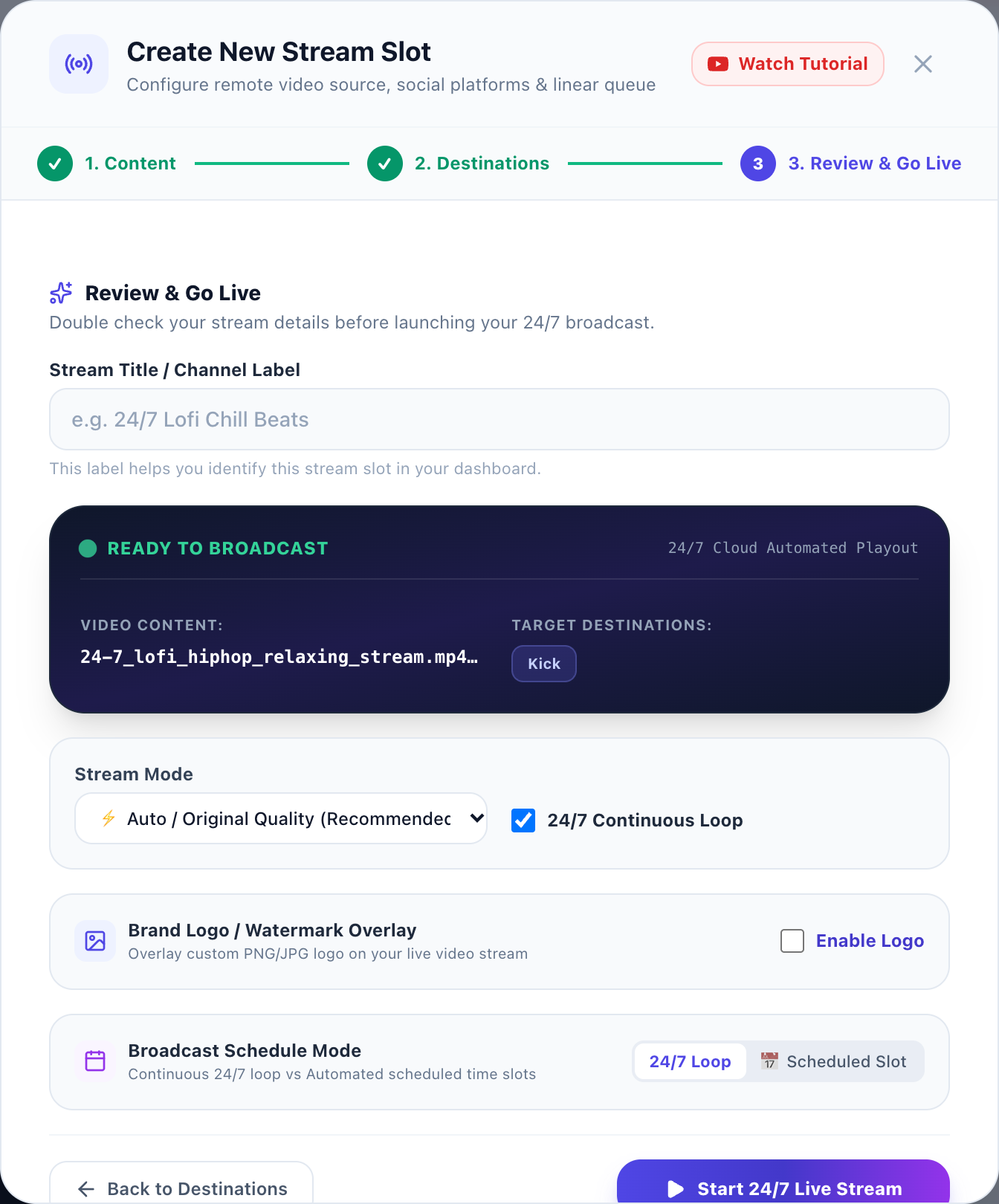
Within 3 to 5 seconds, AlwaysLive24 initializes a dedicated cloud process, performs the secure TLS handshake with Kick's Amazon IVS servers, and begins transmitting your video feed.
Phase 5: Monitoring Your 24/7 Kick Stream & Live Controls
Once launched, your stream appears on the main AlwaysLive24 dashboard. You can now close your browser and turn off your computer — your stream will continue broadcasting on Kick 24 hours a day, 365 days a year.
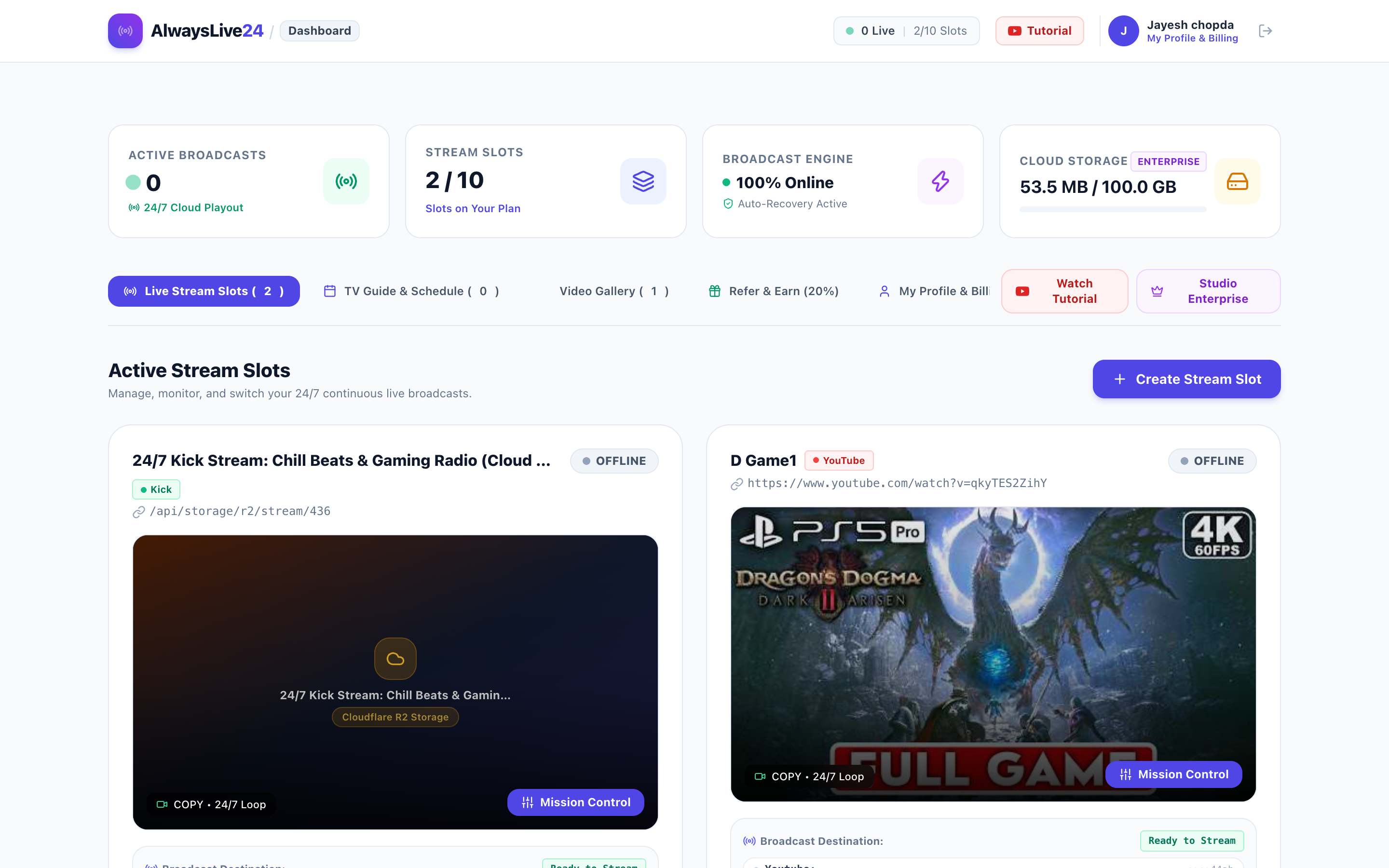
From this dashboard, you get powerful real-time management capabilities:
- Switch Video On-the-Fly: Change the active video or music track being broadcasted without stopping the stream or dropping viewers on Kick.
- Live Telemetry: Real-time monitoring of output FPS, audio bitrate, dropped frames, and total uptime hours.
- Automated Health Monitor: If Kick's servers undergo brief maintenance, AlwaysLive24's background watchdog immediately reconnects your stream automatically.
Comparison: AlwaysLive24 Cloud Playout vs. Traditional Local OBS
Why are professional Kick creators abandoning local OBS Studio setups in favor of cloud playout? The numbers speak for themselves:
| Metric / Feature | AlwaysLive24 (Cloud Playout) | Local OBS Studio (PC/Mac) |
|---|---|---|
| PC Power & Status | PC can be 100% OFF / Closed | PC must run 24/7 non-stop |
| Monthly Electricity Cost | zsh.00 (Zero electric draw) | - + per month in power |
| Hardware Wear & Thermal Risk | Zero wear on GPU/CPU | High risk of GPU degradation & fan failure |
| Uptime Reliability | 99.99% Cloud Server Tier-3 | Frequent drops on home WiFi or OS reboot |
| Simultaneous Multistream | Kick + YouTube + Twitch simultaneously | Requires 3x home upload bandwidth |
Frequently Asked Questions (FAQ)
Can you stream 24/7 on Kick without keeping your PC on?
Yes! Using a cloud streaming service like AlwaysLive24, your video content is hosted and broadcasted directly from cloud data centers to Kick's Amazon IVS servers. Once you click "Start Stream", you can shut down your PC, laptop, or smartphone completely.
Does Kick allow 24/7 pre-recorded streams?
Yes. Kick fully permits creators to broadcast continuous pre-recorded video loops, music radios, podcasts, and gaming content as long as you own the broadcast rights to the video and audio content and follow the standard Kick Terms of Service.
What resolution and bitrate should I use for Kick?
Kick officially supports 1080p Full HD at 60 FPS with recommended video bitrates between 4,500 kbps and 8,000 kbps, and audio at 128 kbps to 160 kbps AAC. AlwaysLive24's zero-CPU remuxing passes through your exact source bitrate without unwanted compression artifacts.
Can I stream to Kick and YouTube at the same time?
Yes. In Step 2 of AlwaysLive24, simply add YouTube or Twitch as a secondary multistream destination. AlwaysLive24 will mirror your live feed to all platforms simultaneously without needing extra bandwidth on your end.
Launch Your 24/7 Kick Stream in 2 Minutes
Test 24/7 continuous live streaming on Kick for free. No credit card required. Experience zero-CPU cloud playout with 99.99% uptime.