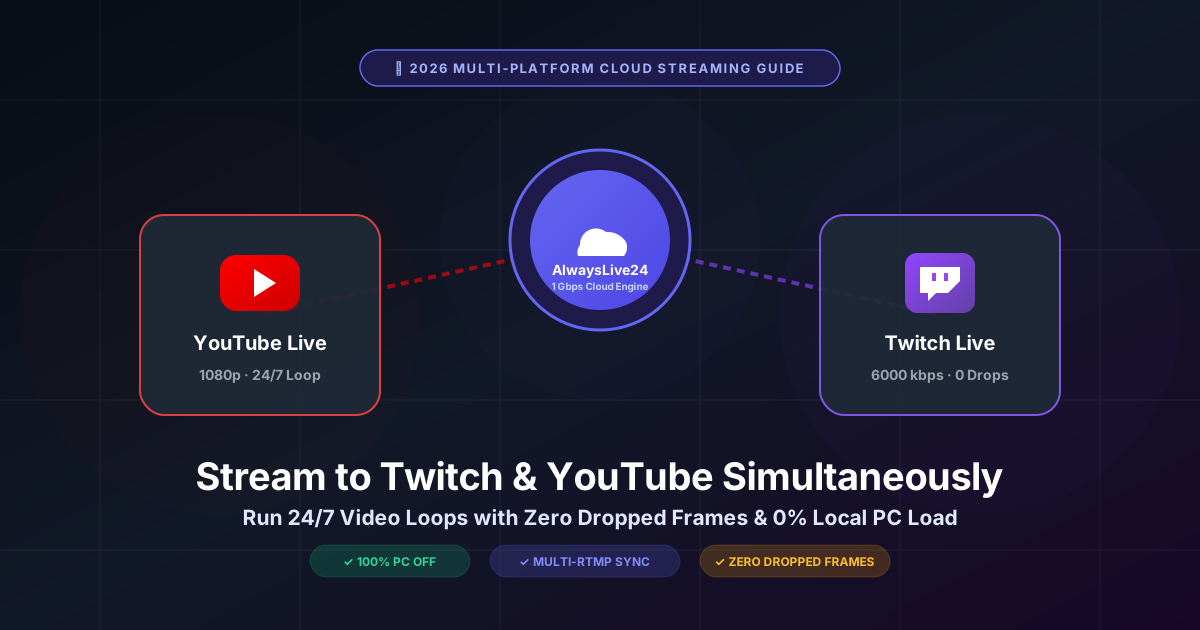
In the hyper-competitive live streaming landscape of 2026, relying on a single platform to build your audience is one of the biggest strategic mistakes a creator can make. Twitch is the undisputed home of real-time gamer culture, hyper-active chat interaction, and community subscriber loyalty. YouTube, on the other hand, possesses the world's most powerful video recommendation algorithm, permanent evergreen search indexing, and the fastest path to compounding public watch time for monetization.
Broadcasting to both Twitch and YouTube simultaneously unlocks exponential growth: you capture the active, interactive viewers browsing Twitch categories while simultaneously feeding YouTube's recommendation engine and accumulating the 4,000 public watch hours required for the YouTube Partner Program (YPP).
Historically, however, multi-streaming required either a costly dual-PC broadcast setup with high-end capture cards, or a paid subscription to third-party restreamers that charge upwards of $39 to $99 every single month. Even worse, streaming from your local computer forces you to burn electricity 24 hours a day, choke your home upload bandwidth, and risk dropped frames or stream crashes whenever your Wi-Fi hiccups.
With AlwaysLive24's automated cloud playout engine, creators can now broadcast pre-recorded video loops to Twitch and YouTube simultaneously 24/7 with 0% CPU load on your home computer, zero dropped frames, and complete freedom to shut your PC down. In this comprehensive step-by-step guide, we walk you through the technical architecture, Twitch simulcasting guidelines, and exact setup process to get your dual-platform stream running in under five minutes.
1. Why Simultaneous Multi-Streaming Outperforms Single-Platform Broadcasting
The audience on Twitch behaves fundamentally differently from the audience on YouTube. Understanding these behavioral dynamics explains why simultaneous cloud streaming delivers between 3x and 5x higher total viewership compared to exclusive single-platform broadcasting:
| Platform Dynamic | Twitch Live | YouTube Live | AlwaysLive24 Dual Playout |
|---|---|---|---|
| Viewer Discovery Mode | Category-based browsing (Browse by game/tag) | Search queries & algorithmic home feed recommendations | Captures both category browsers & search traffic |
| Long-Term Asset Value | VODs expire and get deleted after 14 to 60 days | VODs remain indexed in Google & YouTube search forever | Permanent search ranking + instant Twitch chat activity |
| Monetization Engine | Twitch Subs, Bits, and high-engagement sponsorships | Google AdSense, Super Chats, Memberships, YPP | Dual revenue streams from the exact same broadcast |
| Watch Time Impact | Helps achieve Twitch Affiliate (500 broadcast mins) | Accumulates 4,000 public watch hours for monetization | Fast-tracks partner status across both platforms |
By broadcasting your live gaming sessions, podcast loops, tutorials, or music radio stations across both ecosystems at the same time, you insulate your channel against platform-specific algorithm slumps and maximize every single minute of your content.
2. The Local Multi-Streaming Bottleneck: Why Home PCs and OBS Struggle
When creators attempt to stream to both Twitch and YouTube from a single home computer using desktop broadcasting software like OBS Studio or Streamlabs, they inevitably run into the three fatal bottlenecks of local multi-streaming:
- The Bandwidth Math: Twitch requires a steady 6,000 kbps (6 Mbps) bitrate for high-definition 1080p, while YouTube strongly prefers 6,000 to 9,000 kbps for optimal quality. Broadcasting to both destinations locally requires a sustained, uncompressed outbound upload speed of 12 to 15 Mbps. If anyone in your household streams a 4K movie or downloads a game, your upload bandwidth drops, triggering immediate dropped frames, audio desynchronization, and pixelated lag on both streams.
- Thermal Throttling & Hardware Degradation: Running OBS Studio with dual video encoders active 24 hours a day forces your computer's CPU and graphics card (NVIDIA NVENC or AMD VCE) to run under heavy load non-stop. This causes high internal temperatures, loud cooling fans, elevated electricity bills, and frequent system lockups.
- Zero Reliability & Power Outages: A Windows automatic update, a brief Wi-Fi disconnect, or an accidental power trip kills your broadcast on both Twitch and YouTube simultaneously, terminating your active viewer session and destroying your algorithmic ranking.
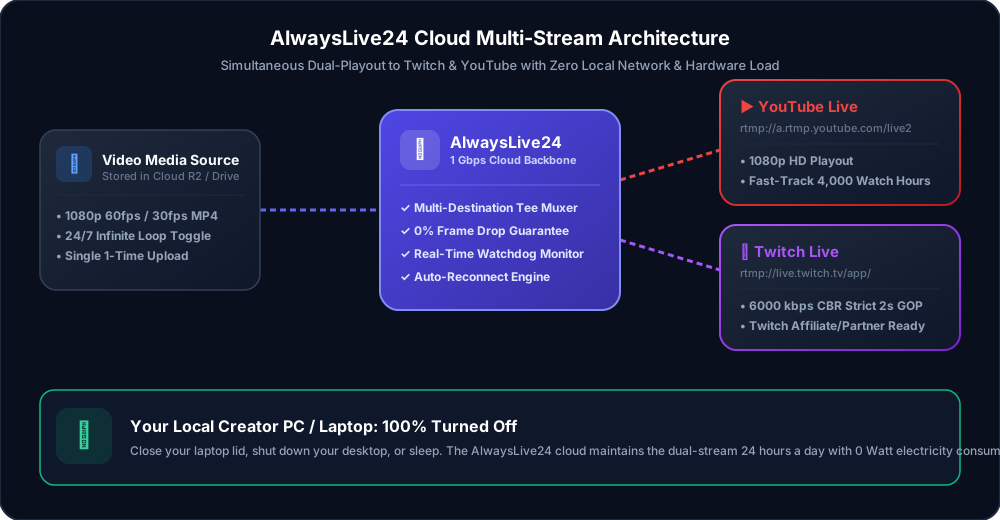
Figure 1: How AlwaysLive24's 1 Gbps cloud engine synchronizes parallel streams to YouTube and Twitch while your local PC stays powered off.
As demonstrated in the architecture diagram above, AlwaysLive24 bypasses local hardware entirely. You upload your video once to the cloud edge vault. Our dedicated European and global streaming servers—connected to high-speed 1 Gbps unmetered fiber backbones—handle 100% of the RTMP muxing and feed both YouTube and Twitch simultaneously with microsecond synchronization.
3. Technical Ingest Specifications: Twitch vs. YouTube Live
To ensure smooth broadcasting without ingest rejections, your video must conform to the strict encoding specifications defined by both platforms. AlwaysLive24's automated cloud engine automatically harmonizes these settings so you don't need to fiddle with complex encoder parameters:
👾 Twitch Ingest Requirements
- Server RTMP URL: rtmp://live.twitch.tv/app/
- Max Bitrate: 6,000 kbps (Hard ceiling for non-partners)
- Rate Control: Strict CBR (Constant Bitrate)
- Keyframe Interval: 2.0 seconds (GOP = 60 @ 30fps)
- Video Codec: H.264 (AVC) Main / High Profile
- Audio Format: AAC-LC stereo, 44.1 kHz, 128 kbps
▶ YouTube Live Ingest Requirements
- Server RTMP URL: rtmp://a.rtmp.youtube.com/live2
- Supported Bitrate: 3,000 to 12,000+ kbps
- Rate Control: CBR or Broadcast-Safe VBR
- Keyframe Interval: 2.0 to 4.0 seconds (Strict 2s recommended)
- Video Codec: H.264 (AVC) yuv420p progressive
- Audio Format: AAC stereo, 44.1 kHz, 128 kbps
When broadcasting simultaneously through AlwaysLive24, our streaming pipeline dynamically aligns your stream to a broadcast-grade strict 2-second keyframe cadence (GOP 60 @ 30 FPS) with 44.1 kHz AAC audio. This satisfies Twitch's rigid ingest validator while delivering pristine 1080p high definition directly to YouTube's multi-bitrate transcoding ladder.
4. Step-by-Step Tutorial: Launching Your Dual 24/7 Stream in 5 Minutes
Setting up your automated 24/7 live stream across Twitch and YouTube requires no complex software installation, no command-line scripting, and zero credit card information to get started. Follow this 5-step tutorial:
Step 1: Copy Your YouTube RTMP Stream Key
- Open YouTube Studio and click the red Go Live button in the top-right corner.
- Under the Stream tab, locate your Stream Key (keep this private). Click Copy.
- Ensure your Stream URL is set to default:
rtmp://a.rtmp.youtube.com/live2.
For a comprehensive visual walkthrough of YouTube Live configurations, check out our dedicated YouTube Studio Stream Key Guide.
Step 2: Copy Your Twitch Primary Stream Key
- Log in to Twitch and click your profile avatar in the top-right corner.
- Select Creator Dashboard, then in the left-hand navigation menu, click Settings > Stream.
- Under Stream Key & Preferences, click Copy next to Primary Stream Key.
- Twitch's universal ingest server is:
rtmp://live.twitch.tv/app/.
Step 3: Create Your Stream Slot in AlwaysLive24
- Navigate to your AlwaysLive24 Dashboard and click Create Stream.
- Give your broadcast a title (e.g., "24/7 Chill Gaming Highlights & Lo-Fi Radio").
- Under Primary Platform, select YouTube. Paste your YouTube RTMP URL and Stream Key.
- Check the box marked Loop Stream (24/7 Infinite Loop) to ensure your video loops seamlessly without interruption.
Figure 2: Configuring primary YouTube ingest with the 24/7 infinite loop toggle enabled.
Step 4: Add Twitch as a Multi-RTMP Destination
- Scroll down to the Additional Destinations (Multi-RTMP) section inside the stream creation window.
- Click + Add Destination.
- In the Server URL field, enter:
rtmp://live.twitch.tv/app/. - In the Stream Key field, paste your Twitch Primary Stream Key.
- Optional: You can add additional destinations like Kick (
rtmp://fa723fc1b171.global-contribute.live-video.net/app/) or Facebook Live (rtmps://live-api-s.facebook.com:443/rtmp/) to broadcast to 3 or 4 networks at the same time! Check out our Kick 24/7 Streaming Guide for Kick stream keys.
Step 5: Start Live Broadcast & Shut Down Your PC
- Click the green Start Live Broadcast button.
- Within 5 to 10 seconds, AlwaysLive24's cloud container initiates your broadcast. Your status will switch to 100% Online · Auto-Recovery Active.
- Verify that your stream is live on both your YouTube Live Dashboard and Twitch Channel.
- Now, close your browser, shut down your computer, or put your laptop in your backpack. The AlwaysLive24 cloud servers will maintain the dual-stream 24 hours a day, 7 days a week.
Figure 3: Real-time telemetry monitoring continuous 24/7 stream health, frame rate, and auto-recovery.
5. Does Twitch Allow Multi-Streaming with YouTube in 2026?
One of the most frequent questions from creators is whether simulcasting violates Twitch's Terms of Service. In late 2023, Twitch officially updated its simulcasting policy, allowing all streamers—including Twitch Affiliates and Partners—to stream to other live services simultaneously. To stay 100% compliant with Twitch's guidelines, follow these three simple rules:
- Equal Stream Quality: You cannot intentionally deliver a degraded stream experience to Twitch compared to other platforms. (AlwaysLive24 guarantees equal broadcast-grade 1080p HD quality to both destinations).
- No On-Screen Third-Party Chat Aggregators: Twitch prohibits on-screen chat overlays that combine chats from YouTube and Twitch into a single merged on-screen window if it degrades the Twitch user experience. We recommend reading chats through a separate multi-chat window on your phone or secondary monitor.
- No Directing Viewers Off-Platform: You cannot tell your Twitch viewers to leave Twitch to watch you on YouTube instead during the broadcast. Treat both communities with equal attention.
6. Cost Comparison: AlwaysLive24 vs. Traditional Restreaming Services
Traditional cloud restreaming services like Restream.io and OneStream Live were designed primarily for corporate webinars and agency marketing, resulting in exorbitant monthly subscription tiers that punish creators who want to stream 24/7 loops. See how the numbers stack up:
| Feature / Platform | Restream.io | OneStream Live | AlwaysLive24 |
|---|---|---|---|
| Starting Price for 24/7 Loops | $49 / month (~₹4,100) | $39 / month (~₹3,250) | ₹49 ($1.99) Day Pass / ₹149 ($9.99/mo) Pro |
| Continuous Streaming Limit | Capped at 4 to 20 hours unless Enterprise | 1 hour on basic tiers | Infinite 24/7 Automated Looping |
| Watermarks on Stream | Mandatory watermark on Free tiers | Branded watermark on Free tiers | 100% Watermark-Free on Paid Plans |
| Multi-Destination RTMP | Limited on budget tiers | Requires Pro Plan | Simultaneous YouTube, Twitch, Kick, FB |
| Autonomous Auto-Recovery | Manual reconnect required | Standard retry | 5-Second Watchdog Self-Healing Engine |
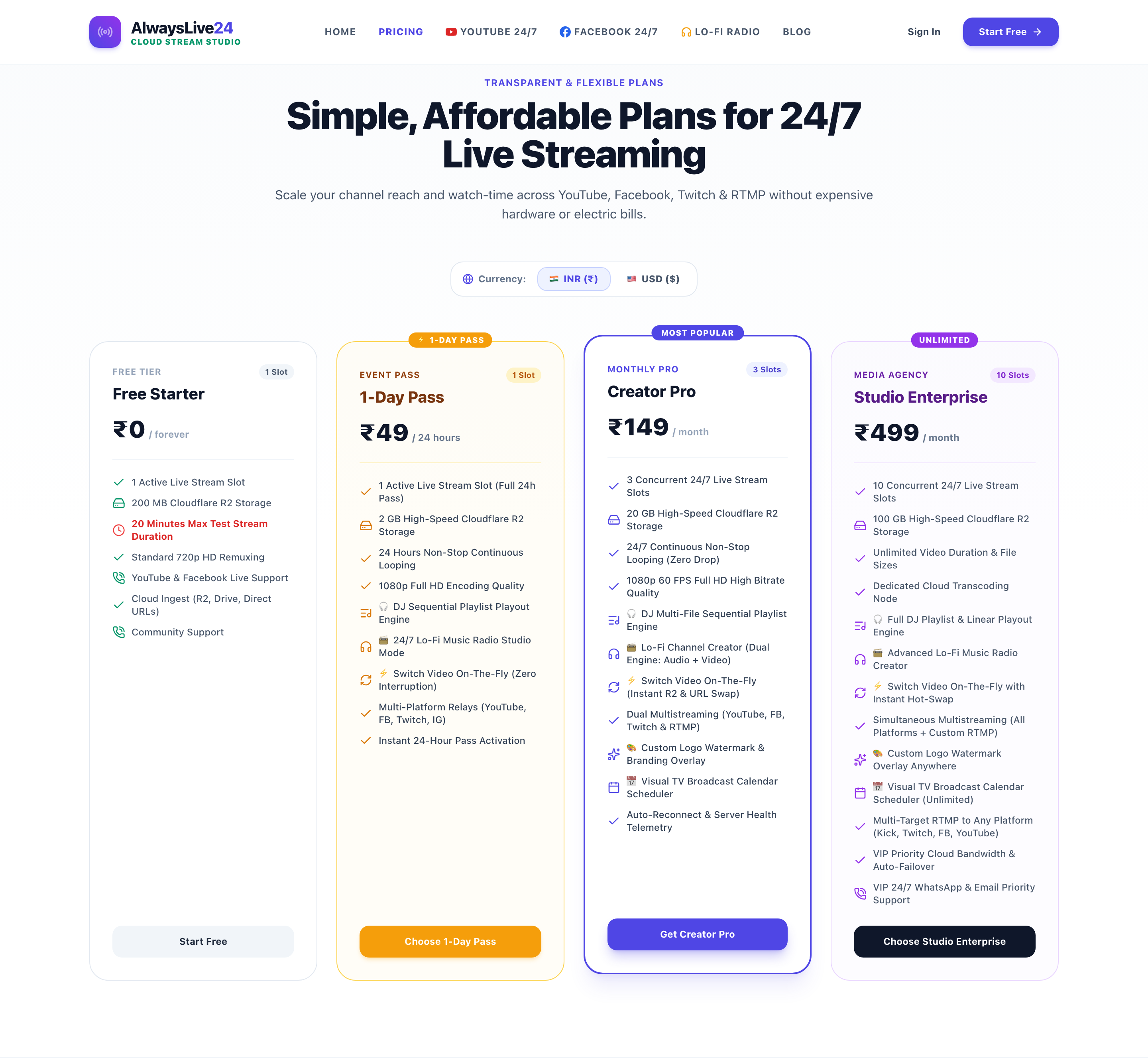
Figure 4: AlwaysLive24 creator-friendly pricing structure with INR and USD currency options.
For independent streamers, gaming channels, and digital media brands, AlwaysLive24 cuts your streaming overhead by more than 75% while delivering higher uptime and true 24/7 cloud automation.
7. Frequently Asked Questions (FAQ)
1. Will my stream get disconnected if my home internet drops?
No. Because your stream runs 100% inside an isolated cloud container on AlwaysLive24's servers, your home internet connection has zero impact on your broadcast. Even if your home Wi-Fi disconnects completely, your stream continues broadcasting seamlessly to Twitch and YouTube without dropping a single frame.
2. Can I add Kick or Facebook Live as a third simultaneous destination?
Yes. In the Additional Destinations section of AlwaysLive24, you can click + Add Destination to add multiple RTMP targets. You can broadcast to YouTube, Twitch, Kick, and Facebook Live all at the same time from a single video source.
3. What happens if Twitch or YouTube resets their RTMP server?
AlwaysLive24 features an autonomous 5-second Watchdog Auto-Recovery engine. If Twitch or YouTube experiences a temporary network hiccup or closes an ingest socket, our system immediately re-establishes the connection and resumes broadcasting within seconds automatically.
4. What video formats are supported?
AlwaysLive24 supports standard H.264 MP4 videos, MKV, WebM, and audio-only MP3 tracks (with auto-generated visual backdrops). You can upload videos directly to our Cloudflare R2 edge vault, link files from Google Drive, or paste pre-existing video URLs.
Conclusion: Double Your Reach with Zero Hardware Overhead
The days of burning electricity on a home PC, risking thermal crashes, and paying $50/month for limited multi-streaming are over. By combining the immediate community engagement of Twitch with the long-term algorithmic power of YouTube Live, simultaneous cloud streaming is the ultimate unfair advantage for creators in 2026.
Whether you are running 24/7 chill gaming marathons, Lo-Fi music radio stations, educational webinars, or evergreen podcast reruns, AlwaysLive24 gives you the enterprise-grade multi-RTMP cloud infrastructure you need at a fraction of the cost.
Ready to Stream to Twitch & YouTube Simultaneously?
Launch your first 24/7 cloud live stream slot in under five minutes. No credit card required, 0% CPU consumption on your PC, and unmetered 1 Gbps cloud bandwidth.