
Broadcasting a 24/7 live stream used to require an expensive dedicated secondary PC, constant high-speed fiber internet, continuous electricity bills, and the ever-present dread of Windows crash updates or OBS encoder overload. AlwaysLive24 fundamentally transforms live content creation by replacing physical broadcast hardware with an autonomous, high-availability Linux cloud playout engine.
Whether you are looping pre-recorded podcast reruns on YouTube, broadcasting non-stop 24/7 Lo-Fi radio channels, or multi-streaming gaming highlights simultaneously to Twitch, Kick, and Facebook, this definitive guide provides a thorough, tool-by-tool walkthrough of the entire AlwaysLive24 creator dashboard with authentic real-world interface screenshots.
1 Platform Architecture & The Core Creator Dashboard
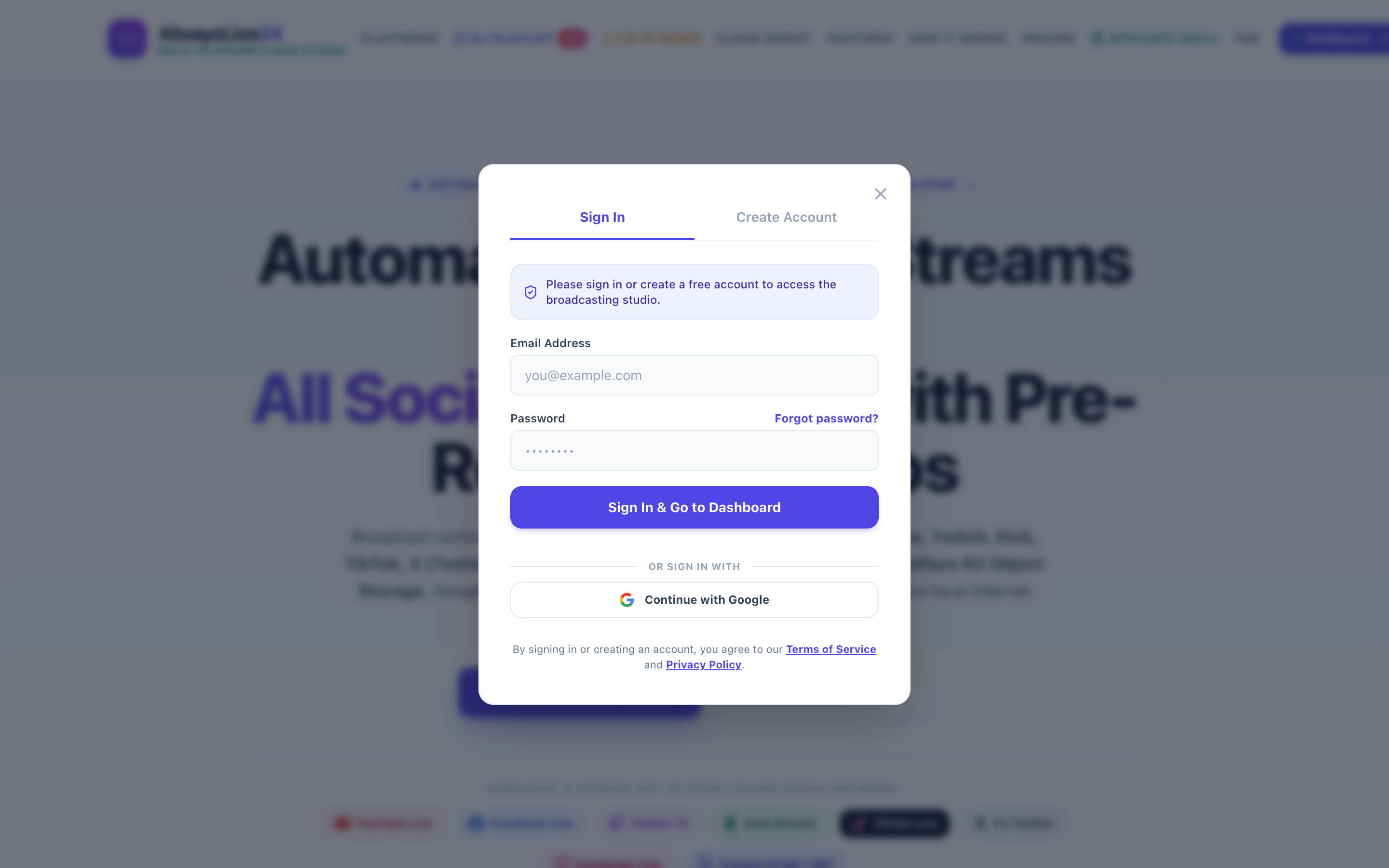
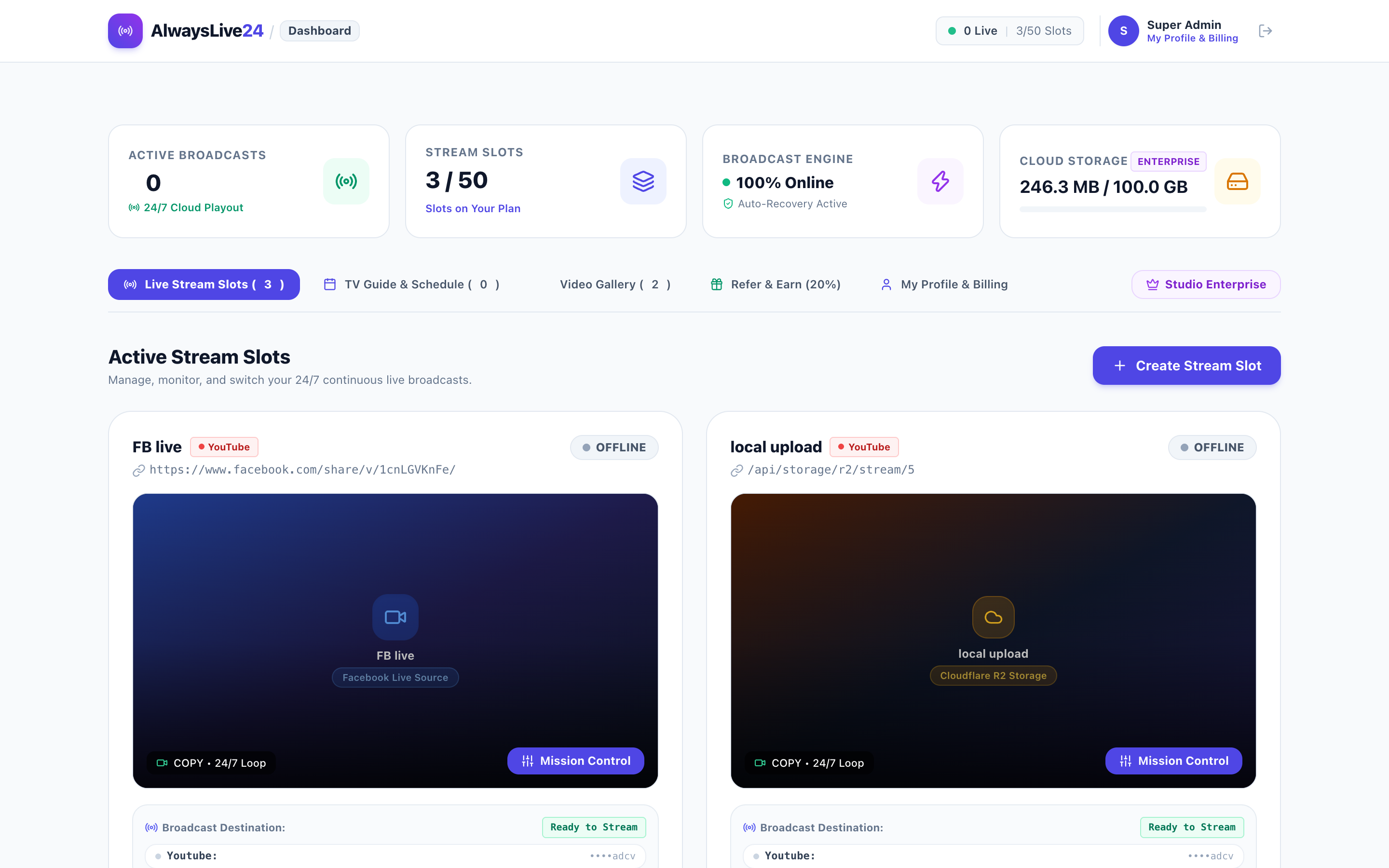
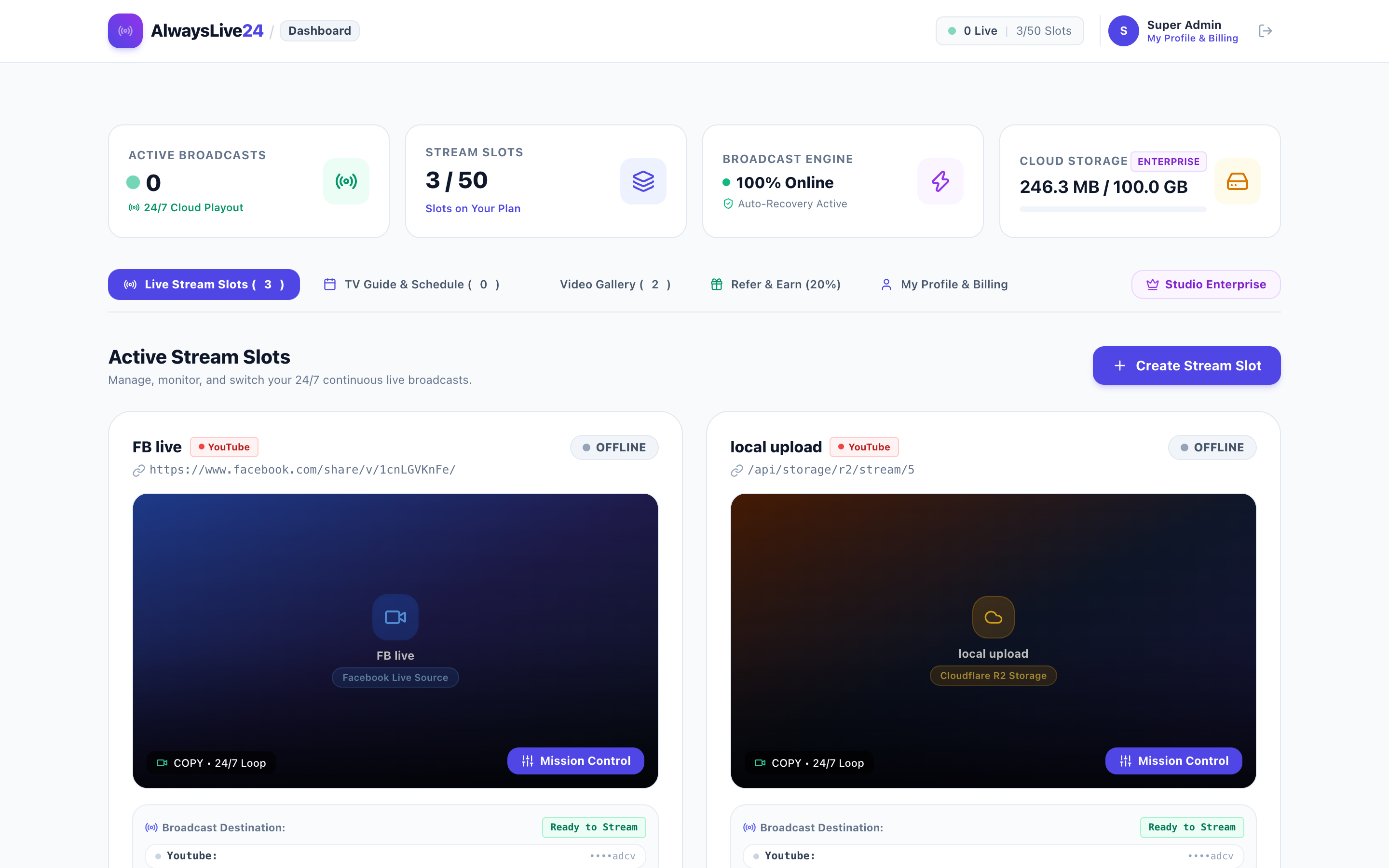
When you log into your AlwaysLive24 account at https://alwayslive24.com/app, you enter the centralized mission control center designed for effortless multi-channel management. Unlike confusing desktop broadcast software cluttered with virtual audio cables and canvas scenes, AlwaysLive24 presents a clean, responsive layout optimized for desktop, tablet, and mobile browsers.
Key Dashboard Elements Explained:
-
AActive vs. Scheduled Stream Tabs: Quickly toggle between your currently running 24/7 broadcasts (
Active Streams) and broadcasts queued for future launch via the integrated calendar scheduler. -
BInstant Search & Filter Bar: If you run 5 to 20 concurrent streams across different niche channels, you can instantly find any active slot by typing its title, platform name, or Slot ID (e.g.,
#952). -
CCloud Media Gallery Counter: Shows the total number of pre-uploaded video assets stored in your dedicated high-speed Cloudflare R2 / S3 cloud storage buckets, ready for instant playout without re-uploading.
-
DOne-Click "+ Create Stream" Wizard: Launches the comprehensive 3-step broadcasting pipeline that guides you from raw video file to a published live stream in under 60 seconds.
2 Tool 1: Multi-Source Video Ingestion Studio
The biggest bottleneck in live streaming is often uploading large multi-gigabyte video files from home internet connections with low upload speeds. AlwaysLive24 solves this by offering four distinct ingestion mechanisms built directly into the stream creator modal.
Drag and drop MP4, MOV, MKV, or TS video files directly from your computer or phone. Uploads stream through high-speed Cloudflare R2 object storage with chunked, resumable data transfers. Even 10GB+ long-form files upload with maximum stability.
Paste any public YouTube video link or social video URL. The AlwaysLive24 cloud server fetches the video directly server-to-server at 1000 Mbps speeds, consuming zero mobile data or home bandwidth from your device.
Host your video files on Google Drive, Dropbox, or a custom web server? Simply paste the direct HTTP/HTTPS download link. AlwaysLive24 validates the video stream headers and imports it seamlessly into your slot.
Never upload the same video twice. Every file you upload is automatically archived in your private Cloud Media Library. Launching new 24/7 loops or switching content takes just one single click.
3 Tool 2: Configuring RTMP Ingest & Multi-Destination Broadcasting
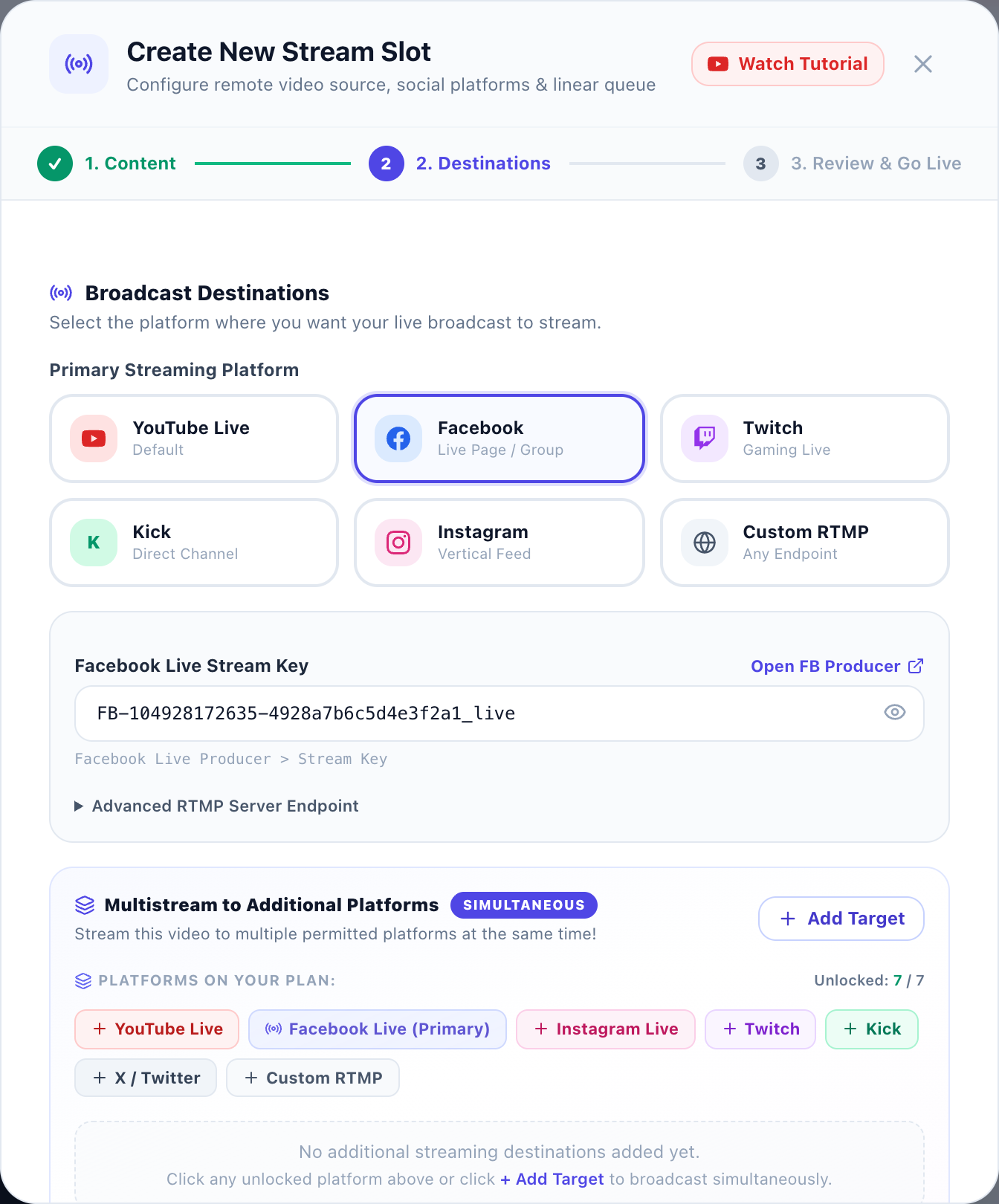
Once your video source is selected, Step 2 of the Stream Wizard connects AlwaysLive24's cloud playout engine to your destination platform. AlwaysLive24 utilizes standard RTMP (Real-Time Messaging Protocol) and secure RTMPS (RTMP over TLS/SSL), making it compatible with every major streaming platform in existence.
1. YouTube Live Setup
In YouTube Studio (studio.youtube.com/channel/live), create a new live stream or use your default stream key. Copy the Stream URL (rtmp://a.rtmp.youtube.com/live2) and paste your private Stream Key into AlwaysLive24.
2. Facebook Live Setup
Navigate to Facebook Live Producer (facebook.com/live/producer). Under Stream Setup, select "Streaming Software", check the box for "Persistent Stream Key", and copy the Server URL (rtmps://live-api-s.facebook.com:443/rtmp/) and Stream Key.
3. Twitch TV Setup
In Twitch Creator Dashboard (dashboard.twitch.tv/settings/stream), copy your Primary Stream Key. AlwaysLive24 routes packets to Twitch's global ingest network (rtmp://live.twitch.tv/app/) with optimal low-latency flags for instantaneous viewer chat interaction.
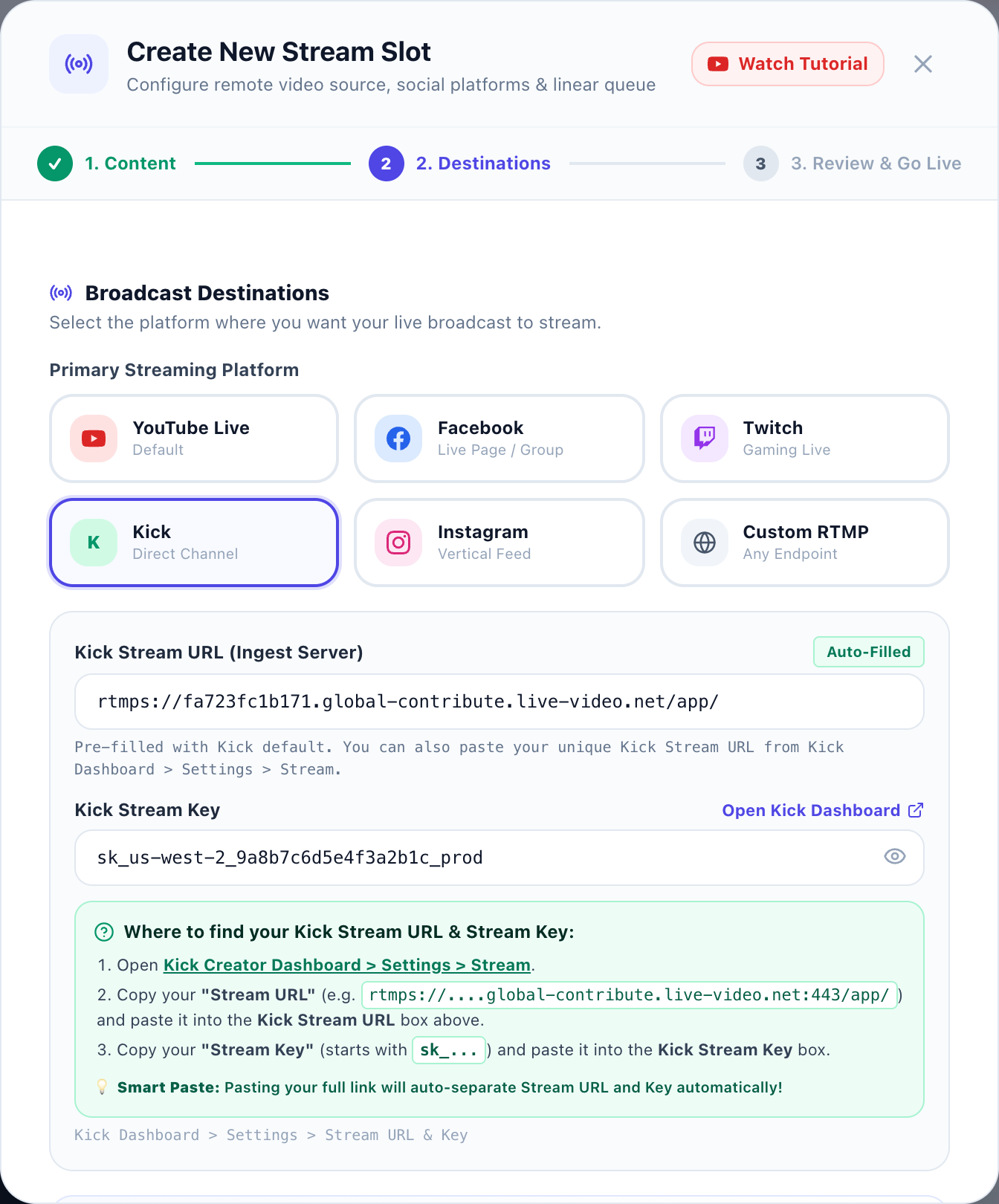
4. Kick.com Setup
In your Kick Creator Dashboard, open Settings > Stream Key. Copy the Stream URL (rtmps://fa723fc1b171.global-contribute.live-video.net) and paste your Stream Key. Kick's generous 95/5 revenue split makes 24/7 gaming highlight streams exceptionally lucrative.
5. Multi-Streaming (Restreaming) from One Slot
Want to broadcast to YouTube AND Facebook simultaneously? Click "+ Add Destination" inside Step 2. AlwaysLive24 duplicates the outgoing cloud stream packets across multiple RTMP endpoints in parallel — without requiring double bandwidth from your end.
4 Tool 3: Automated 24/7 Lo-Fi & Music Radio Studio
One of AlwaysLive24's most loved creator features is the Dedicated 24/7 Lo-Fi Radio Studio. Channels like Lofi Girl generate tens of thousands of dollars each month by streaming relaxing animated video loops with royalty-free chillhop playlists. AlwaysLive24 lets anyone create this exact setup in minutes.
How the Lo-Fi Engine Works Behind the Scenes:
1. Visual Loop Remuxing: You provide an aesthetically pleasing short video loop (e.g., 10 to 60 seconds of rain, anime study aesthetics, or chill pixel art). The cloud engine loops this video continuously in the background without frame drops.
2. Audio Track Concatenation: Upload your audio tracks (MP3, WAV, AAC). The engine remuxes the audio over the looping visual without requiring a heavy re-encoding pipeline, keeping cloud latency near zero.
5 Tool 4: Playout Quality, Resolution & 24/7 Infinite Looping
Step 3 is where you finalize the stream's technical delivery specifications. This step ensures your broadcast strictly adheres to YouTube, Facebook, and Twitch ingest recommendations.
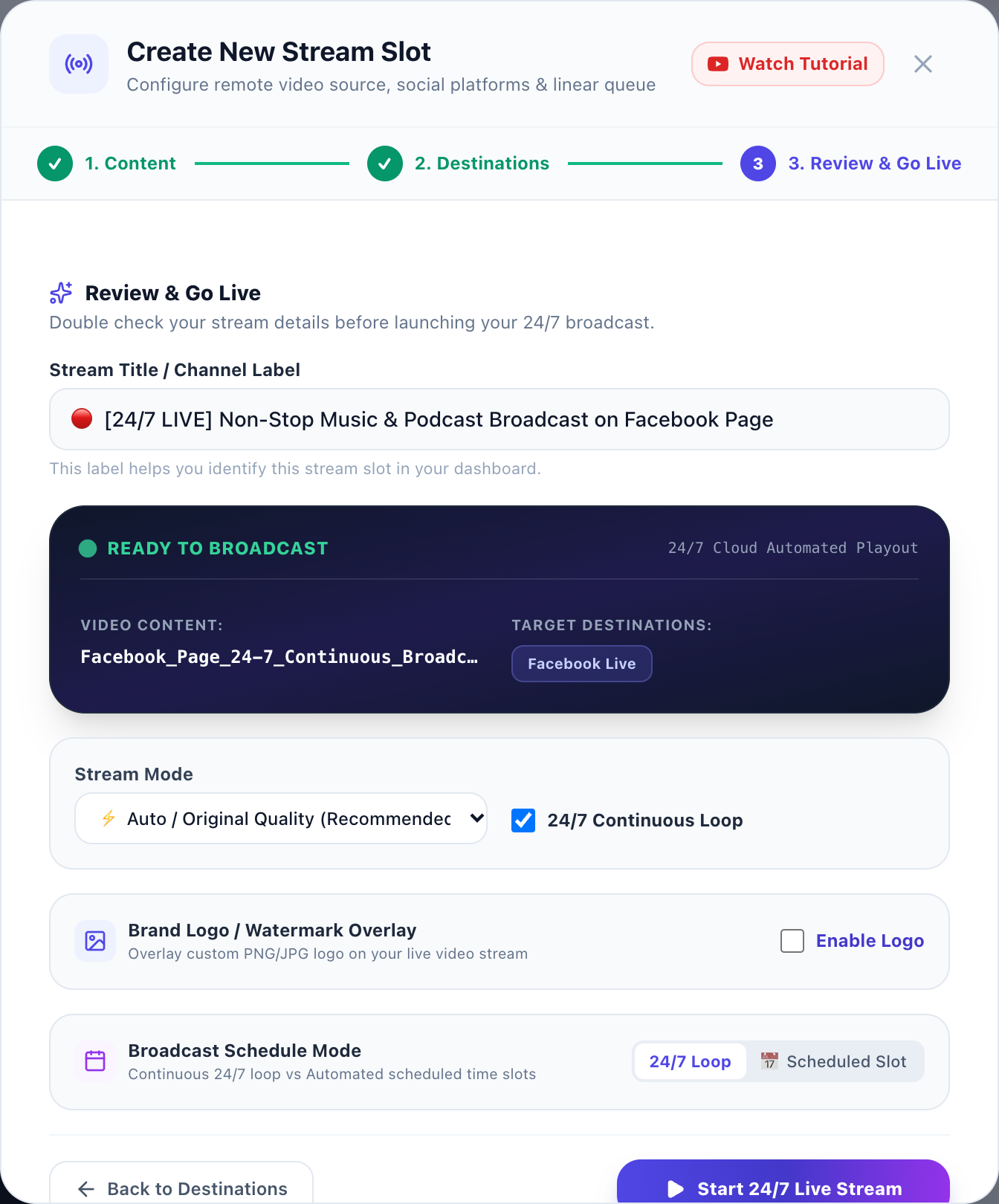
| Feature | Setting Value | Technical Benefit |
|---|---|---|
| Video Resolution | 1080p Full HD (or 720p HD) | Crystal clear presentation optimized for TV and desktop viewer screens. |
| 24/7 Infinite Looping | Enabled (Active) | When the video reaches the end, it immediately restarts with seamless packet transitions. |
| Playout Bitrate | 4,500 – 6,000 kbps CBR | Constant Bitrate ensures no buffering or packet starvation on target RTMP CDNs. |
| Audio Bitrate | 128 – 192 kbps AAC | Studio-grade stereo audio compatible across all mobile devices and soundbars. |
| Scheduled Playout | Optional DateTime | Automate stream start and stop times synchronized with creator release dates. |
6 Tool 5: Live Stream Telemetry & On-the-Fly Video Switching
Once you click "Launch Broadcast", your stream immediately transitions into the live execution state. AlwaysLive24 provides an enterprise-grade real-time telemetry card that monitors the health of the underlying FFmpeg process and connection status.
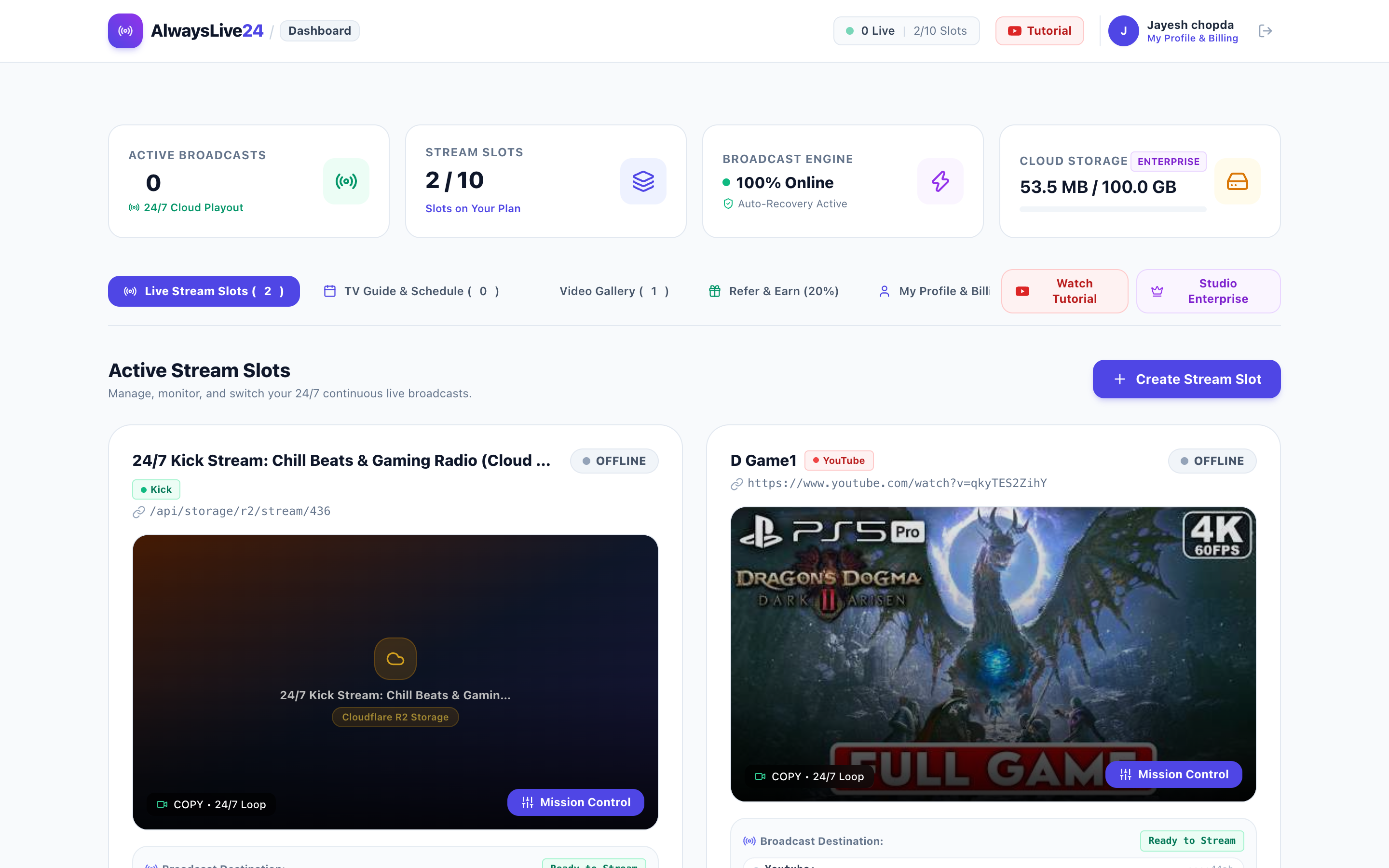
Understanding Telemetry & Controls:
1.00x indicates perfect realtime playout. Exactly 1 second of video is broadcast every elapsed real-world second. No lag, no stutter, zero buffer overrun.
TCP socket and RTMP handshake verified with YouTube/Facebook servers. If a network blip occurs, the cloud auto-healer reconnects automatically within 3 seconds.
Instant granular controls: gracefully stop the stream, trigger a hot restart, or switch video files on-the-fly without changing stream keys.
🔥 The Power of "Hot Video Switching":
In traditional streaming, if you want to change the video that is currently playing, you must stop the stream, open OBS, select a new file, and start a new stream (which resets your live viewer count and generates a new YouTube VOD).
With AlwaysLive24's Hot Video Switcher, you can swap the playing video directly from your Cloud Gallery while remaining live. The RTMP connection remains unbroken, viewers experience seamless continuity, and your YouTube live stream ranking remains preserved!
7 Cloud Resource Tiers & Pricing Plans
AlwaysLive24 is engineered to offer the most competitive pricing in the cloud live streaming industry. Competitors charge upwards of $39 to $99 per month for basic features, while AlwaysLive24 provides dedicated cloud hardware at creator-friendly rates.
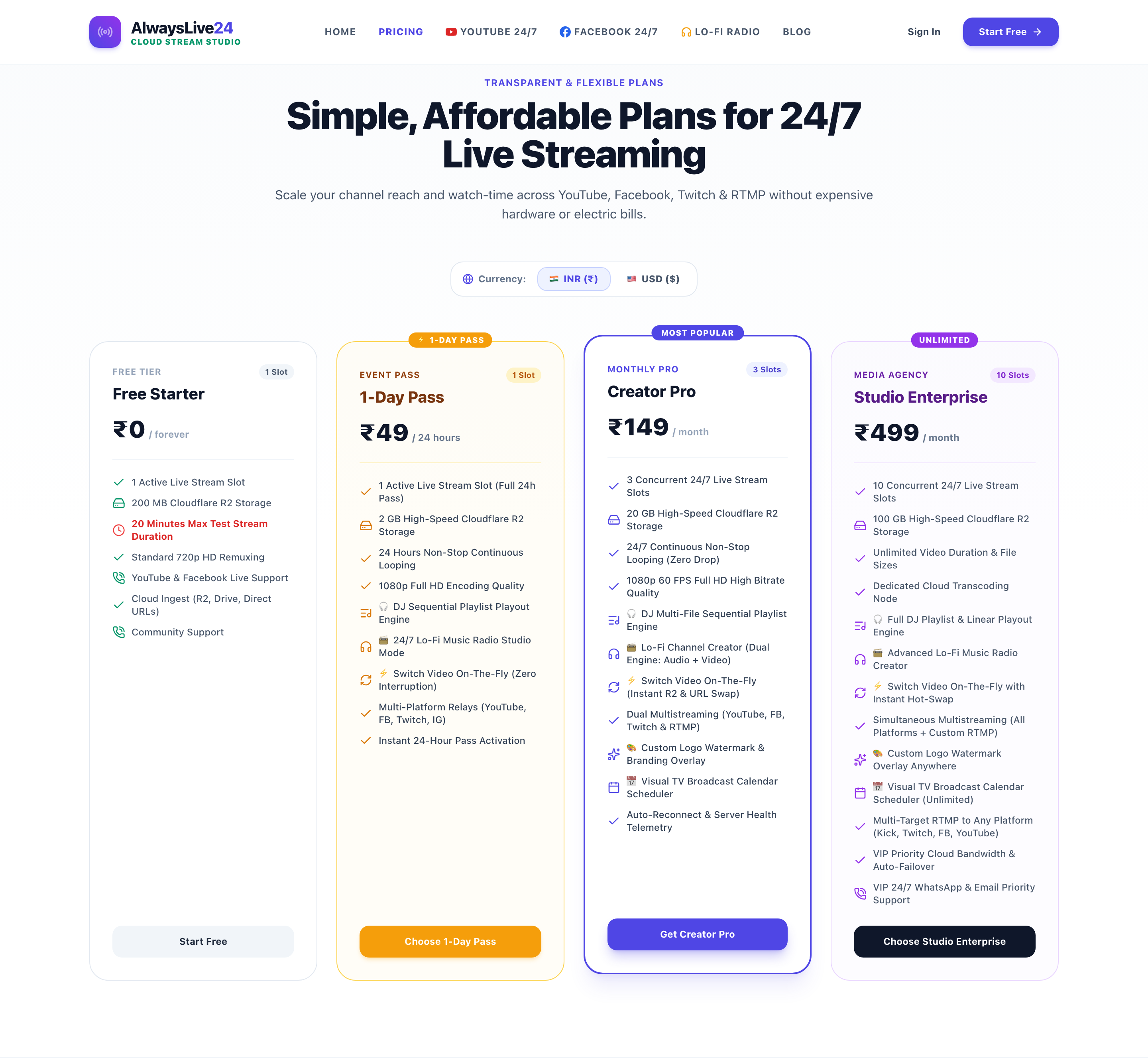
Free Starter
For creators testing cloud streaming capabilities.
- ✓ 1 Active Stream Slot
- ✓ 720p HD Streaming
- ✓ YouTube & Facebook
- ✓ 1 GB Cloud Storage
1-Day Pass
24-hour full access for events & launches.
- ✓ 1 Dedicated Slot (24 Hrs)
- ✓ 1080p Full HD
- ✓ Multi-Platform Ingest
- ✓ High-Speed 1Gbps Uplink
Creator Pro
Ideal for serious YouTubers & gamers.
- ✓ 2 Concurrent Slots
- ✓ 1080p 60FPS Full HD
- ✓ 24/7 Infinite Looping
- ✓ 10 GB Cloud Storage
- ✓ Priority Cloud Healer
Studio Enterprise
For multi-channel media networks & agencies.
- ✓ 5+ Concurrent Slots
- ✓ Simultaneous Restreaming
- ✓ 50 GB High-Speed R2 Storage
- ✓ Custom RTMP & VIP Support
8 2026 Creator Best Practices for 24/7 Streaming Growth
To maximize your audience retention, subscriber growth, and watch time hours using AlwaysLive24, follow these tested production rules:
When exporting your pre-recorded video in Adobe Premiere, DaVinci Resolve, or Final Cut Pro, choose H.264 High Profile with audio set to AAC-LC 192 kbps and Keyframe Interval (GOP) set to 2 seconds (or 60 frames at 30fps). This allows the AlwaysLive24 cloud playout engine to remux your stream with 0% CPU conversion, guaranteeing 100% video quality preservation.
YouTube's algorithm heavily promotes active live streams in the Browse Features and Recommended Feeds. A single 24/7 live stream loop averaging 25 concurrent viewers accumulates 600 watch hours per day, unlocking YouTube Partner Program monetization in less than one week.
Keep your live audience engaged by rotating fresh episodes, podcast installments, or new music playlists once or twice per week using the Hot Video Switcher. Your live chat community stays fresh, returning viewers stay subscribed, and your channel metrics continue compounding.
Ready to Launch Your First 24/7 Cloud Live Stream?
Turn off your computer, save on electricity, and let AlwaysLive24's cloud playout engine broadcast your content to YouTube, Facebook, Twitch, and Kick 24 hours a day, 7 days a week.