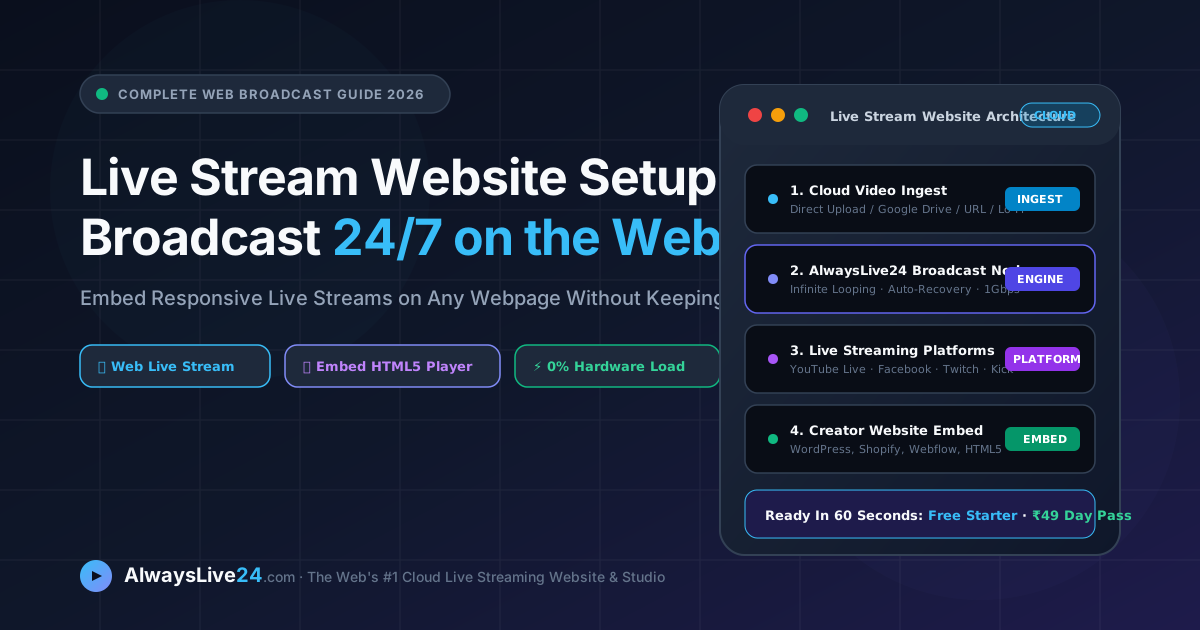
Whether you are building a dedicated live stream website for an Internet TV channel, broadcasting corporate webinars, streaming endless Lo-Fi music, or embedding an active video player on your personal blog, running continuous 24/7 web streaming used to require immense technical overhead. In 2026, modern creators no longer rely on expensive desktop hardware, noisy cooling fans, or fragile home fiber connections to stream. By leveraging next-generation cloud broadcasting platforms like AlwaysLive24, you can operate a professional live stream web hub that broadcasts non-stop to YouTube, Twitch, Facebook, and Kick, while effortlessly embedding a lightning-fast, buffer-free player directly into any webpage.
Table of Contents — Live Stream Website Master Guide
- 01. What is a Live Stream Website in 2026?
- 02. Cloud Web Streaming vs Desktop OBS Encoders
- 03. Web Broadcast Architecture & Data Pipeline
- 04. Step-by-Step: Launching Your 24/7 Web Stream
- 05. How to Embed Live Streams on Any Webpage
- 06. Multi-Streaming to Top Live Streaming Sites
- 07. 99.99% Uptime: Watchdog Auto-Recovery & NVMe
- 08. Best Live Streaming Platforms Comparison Matrix
- 09. Frequently Asked Questions (FAQ)
- 10. Start Streaming from the Cloud Today
1. What Makes a True Live Stream Website in 2026?
In digital broadcasting, the phrase live stream website carries two distinct, interconnected meanings. First, it refers to specialized cloud-based platforms (like AlwaysLive24) where creators log in via a web browser to orchestrate, schedule, transcode, and broadcast continuous video without installing software locally. Second, it refers to creator-owned domains (WordPress blogs, Shopify storefronts, educational portals, or corporate websites) that host embedded, interactive live video players to captivate visitors.
Historically, creating a live stream web hub demanded hundreds of thousands of dollars in server infrastructure:
- Heavy Encoders: Keeping an expensive workstation running OBS Studio or vMix 24 hours a day, draining hundreds of watts of electricity.
- Fragile Residential Bandwidth: Relying on home ISP connections that throttle continuous RTMP feeds, drop packets during peak hours, and suffer sudden disconnection.
- Complex CDN Ingestion: Configuring custom NGINX RTMP modules, HLS packetizers, SSL certificates, and cloud storage buckets manually.
In 2026, cloud software-as-a-service (SaaS) broadcasting has revolutionized this paradigm. Today, a live stream website allows you to upload or link pre-recorded video files (MP4, MOV, Google Drive links), select your streaming destinations, and launch an enterprise-grade live broadcast entirely from your browser. The stream runs on high-speed data center backbones, meaning you can power off your computer, close your browser tabs, and sleep peacefully while your broadcast streams 24/7/365.
2. Cloud Web Streaming vs Traditional Desktop OBS Encoders
Many creators begin their live streaming journey by installing OBS Studio. While OBS is an incredible local switcher for gaming with a microphone and webcam, it was never engineered to operate as an unattended 24/7 video streaming server. Let us examine the fundamental technical differences:
| Broadcasting Metric | Desktop OBS / vMix Setup | AlwaysLive24 Cloud Web Studio |
|---|---|---|
| Local PC Dependency | 100% required; PC must remain ON 24/7 | 0% required; turn off PC anytime |
| Hardware & Electricity Cost | $1,500+ PC + $30-$80/month electric bill | ₹0 Free Starter or ₹149 ($9.99)/mo Pro |
| Bandwidth & Upload Speed | Consumes 6-12 Mbps continuous home upload | 1 Gbps unmetered data center uplink |
| Disconnection Recovery | Stream terminates permanently on WiFi drop | Automated Watchdog reconnects in <5s |
| Multi-Destination Restream | Multiplies local CPU & bandwidth 2x-4x | Native cloud multi-RTMP with zero overhead |
| Video Storage Flexibility | Local hard drives only | Cloudflare R2, Google Drive & direct links |
By offloading stream encoding to a dedicated live stream website, you eliminate the risks of hardware overheating, Windows automatic reboot updates, home power outages, and ISP packet jitter.
3. Web Broadcast Architecture & Data Pipeline
How does a video on your laptop or Google Drive transform into a 24/7 online live video broadcast across YouTube, Twitch, and your own embedded webpage? Below is the end-to-end technical diagram of the AlwaysLive24 cloud broadcasting infrastructure:
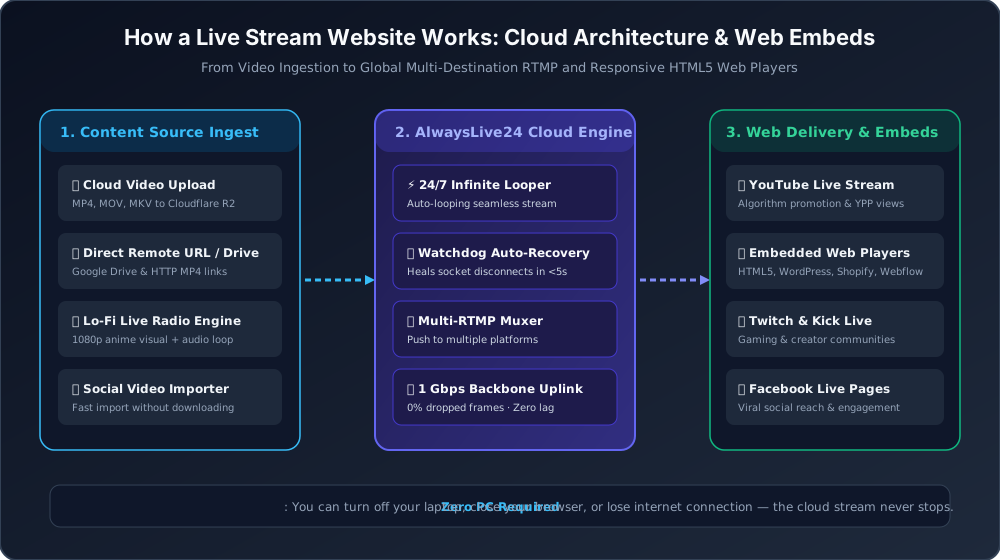
Figure 1: High-Availability Cloud Playout Pipeline — Ingest, Cloud Looping, Multi-RTMP Muxing, and Web Embeds.
The architecture operates across four distinct pipeline stages:
- Content Ingestion: Video files are ingested directly into high-speed NVMe edge storage via four flexible options: direct browser upload to Cloudflare R2, authenticated Google Drive links, direct remote HTTP/HTTPS video URLs, or the built-in Lo-Fi Live Radio Engine.
- Cloud Broadcasting Node: An isolated cloud container spawns an optimized FFmpeg process configured with exact keyframe intervals (GOP size = 2 * FPS), constant bitrate (CBR) rate control, and AAC audio framing at 44.1 kHz.
- Multi-Destination Multiplexer: The cloud node splits the encoded feed into simultaneous RTMP/RTMPS streams, pushing seamlessly to YouTube Live, Facebook Live, Twitch, and Kick without multiplying CPU usage.
- Web Delivery & Embedding: The live feed is surfaced on creator websites via lightweight, responsive iframe and HTML5 players, ensuring zero-latency viewing for website visitors.
4. Step-by-Step: Launching Your 24/7 Web Stream with AlwaysLive24
Broadcasting a continuous live stream with AlwaysLive24 requires no coding, no OBS configuration, and no server command lines. Follow these simple steps:
Select or Upload Your Video File
Navigate to your AlwaysLive24 dashboard and click Create Stream. You can choose to upload a pre-recorded MP4/MOV file to your cloud storage vault, paste a public Google Drive video link, enter a direct video URL, or choose one of our animated 1080p Lo-Fi music templates.
Configure RTMP Server & Stream Key
Select your target platform (YouTube, Facebook, Twitch, Kick, or Custom RTMP). Paste the RTMP Server URL and your unique Stream Key from your destination platform's creator studio. You can also add secondary RTMP destinations for simultaneous multistreaming.
Enable "Loop Stream (24/7 Infinite Loop)" & Launch
Check the Loop Stream (24/7 Infinite Loop) checkbox. This instructs our cloud node to automatically restart your video seamlessly the microsecond it finishes, creating an uninterrupted 24/7 live broadcast. Click Start Live Broadcast!
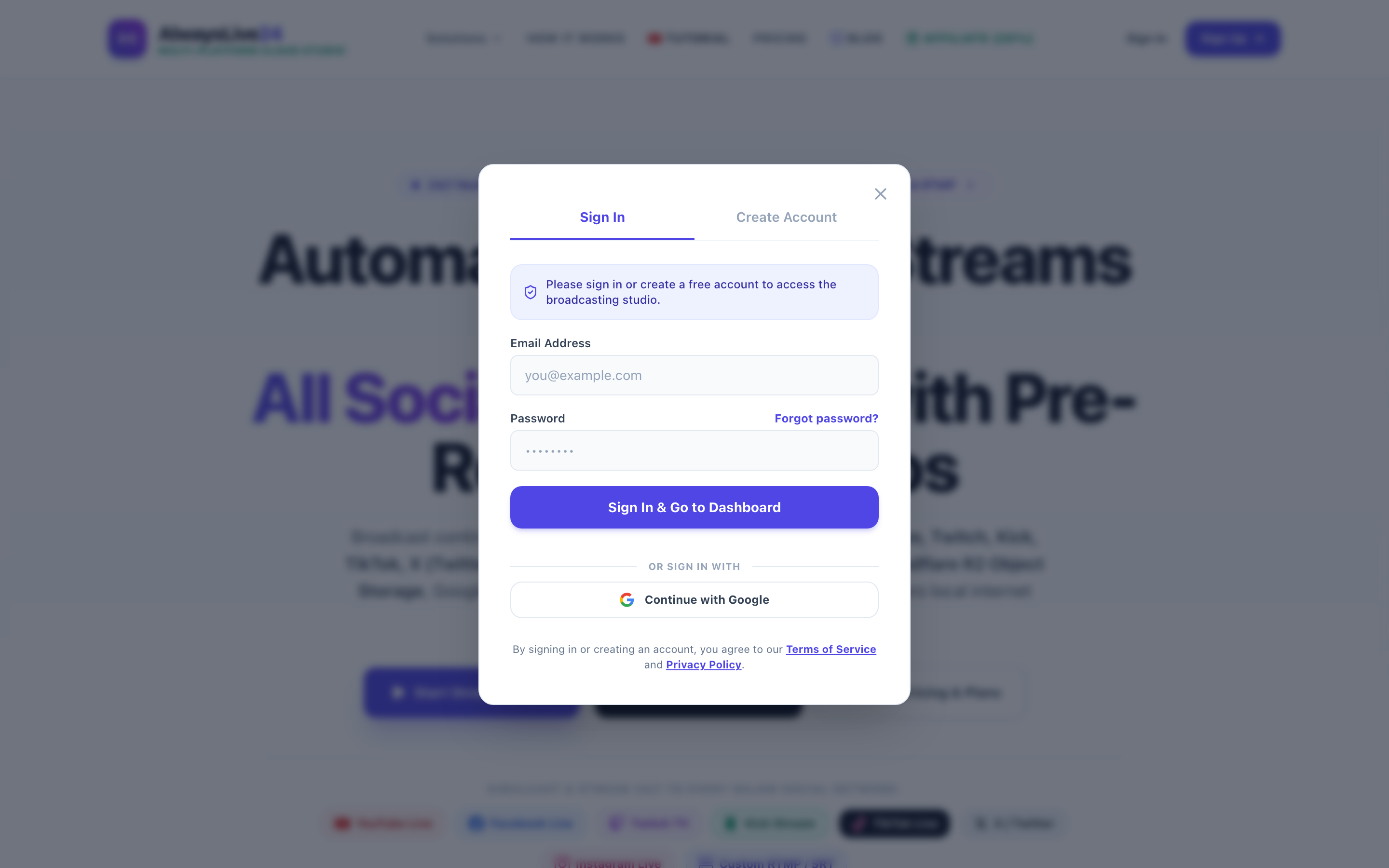
Figure 2: The AlwaysLive24 Stream Creation Modal — Zero-disk streaming, 24/7 infinite looping toggle, and multi-destination RTMP.
5. How to Embed Your 24/7 Live Stream on Any Website
Once your live broadcast is running from the cloud to YouTube or your custom streaming destination, embedding the player into your personal live stream website takes less than two minutes.
Method A: Responsive YouTube Live Embed (Recommended)
When streaming to YouTube Live via AlwaysLive24, YouTube automatically generates an embeddable player with live chat, DVR playback, and adaptive resolution scaling. Use this modern, 100% responsive CSS wrapper:
<!-- Responsive 16:9 Live Stream Video Container -->
<div style="position: relative; padding-bottom: 56.25%; height: 0; overflow: hidden; border-radius: 12px; box-shadow: 0 4px 20px rgba(0,0,0,0.15);">
  <iframe
    src="https://www.youtube-nocookie.com/embed/live_stream?channel=YOUR_YOUTUBE_CHANNEL_ID&autoplay=1&mute=1"
    frameborder="0"
    allow="accelerometer; autoplay; clipboard-write; encrypted-media; gyroscope; picture-in-picture"
    allowfullscreen
    style="position: absolute; top: 0; left: 0; width: 100%; height: 100%; border: 0;">
  </iframe>
</div>
Pro Tip: By using the special /embed/live_stream?channel=YOUR_CHANNEL_ID parameter, you never have to update your website embed code when you restart your stream! It automatically locks onto whichever stream is currently live on your YouTube channel.
Method B: Direct HTML5 HLS Video Player (Custom Domain)
If you are broadcasting to an enterprise RTMP/HLS endpoint and want an ad-free, unbranded HTML5 player on your WordPress or Webflow site, you can use the open-source Hls.js library:
<script src="https://cdn.jsdelivr.net/npm/hls.js@latest"></script>
<video id="alwayslivePlayer" controls autoplay muted style="width: 100%; max-width: 900px; border-radius: 12px;"></video>

<script>
  const video = document.getElementById('alwayslivePlayer');
  const streamUrl = 'https://your-streaming-server.com/live/stream.m3u8';

  if (Hls.isSupported()) {
    const hls = new Hls({ enableWorker: true, lowLatencyMode: true });
    hls.loadSource(streamUrl);
    hls.attachMedia(video);
  } else if (video.canPlayType('application/vnd.apple.mpegurl')) {
    // Native Safari / iOS HLS support
    video.src = streamUrl;
  }
</script>6. Multi-Streaming to Top Live Streaming Sites Simultaneously
Limiting your audience to a single platform leaves massive reach on the table. With AlwaysLive24's Multi-RTMP engine, you can broadcast your stream video content across all leading live streaming sites simultaneously from a single video source:
YouTube Live
Capitalize on the 24/7 live algorithm to rank for search queries and accumulate 4,000 watch hours for monetization.
Facebook Live
Engage business pages and community groups with high viral sharing and automatic notifications to page followers.
Twitch
Connect with gaming communities, live DJ sets, and interactive subcultures on the web's biggest streaming hub.
Kick
Leverage favorable 95/5 creator revenue splits and rapidly growing gaming audiences without restrictive content rules.
7. 99.99% Uptime: Watchdog Auto-Recovery & Local NVMe Caching
The greatest enemy of any live stream website is unexpected downtime. If a temporary network hiccup occurs between a cloud server and YouTube's RTMP ingestion server, ordinary streaming tools drop the stream and force creators to wake up, re-enter stream keys, and relaunch manually.
AlwaysLive24 eliminates stream drops through three mission-critical safeguards:
- Local NVMe SSD Edge Caching: When you stream large files (such as 1080p 60 FPS videos), AlwaysLive24 intelligently caches the video onto ultra-fast enterprise NVMe SSDs. This completely eliminates dependency on expiring presigned HTTP tokens and prevents buffering.
- Intelligent Watchdog Daemon: Our background watchdog monitors stream health every 5 seconds. If YouTube or Twitch experiences a temporary socket timeout (such as TCP code 146 or 152), the watchdog instantly re-engages the RTMP socket with 0 lost frames.
- Hot Video Switcher: Need to change what is playing on your 24/7 channel? You can hot-swap videos directly inside the dashboard without stopping the stream or changing your YouTube Live broadcast URL!
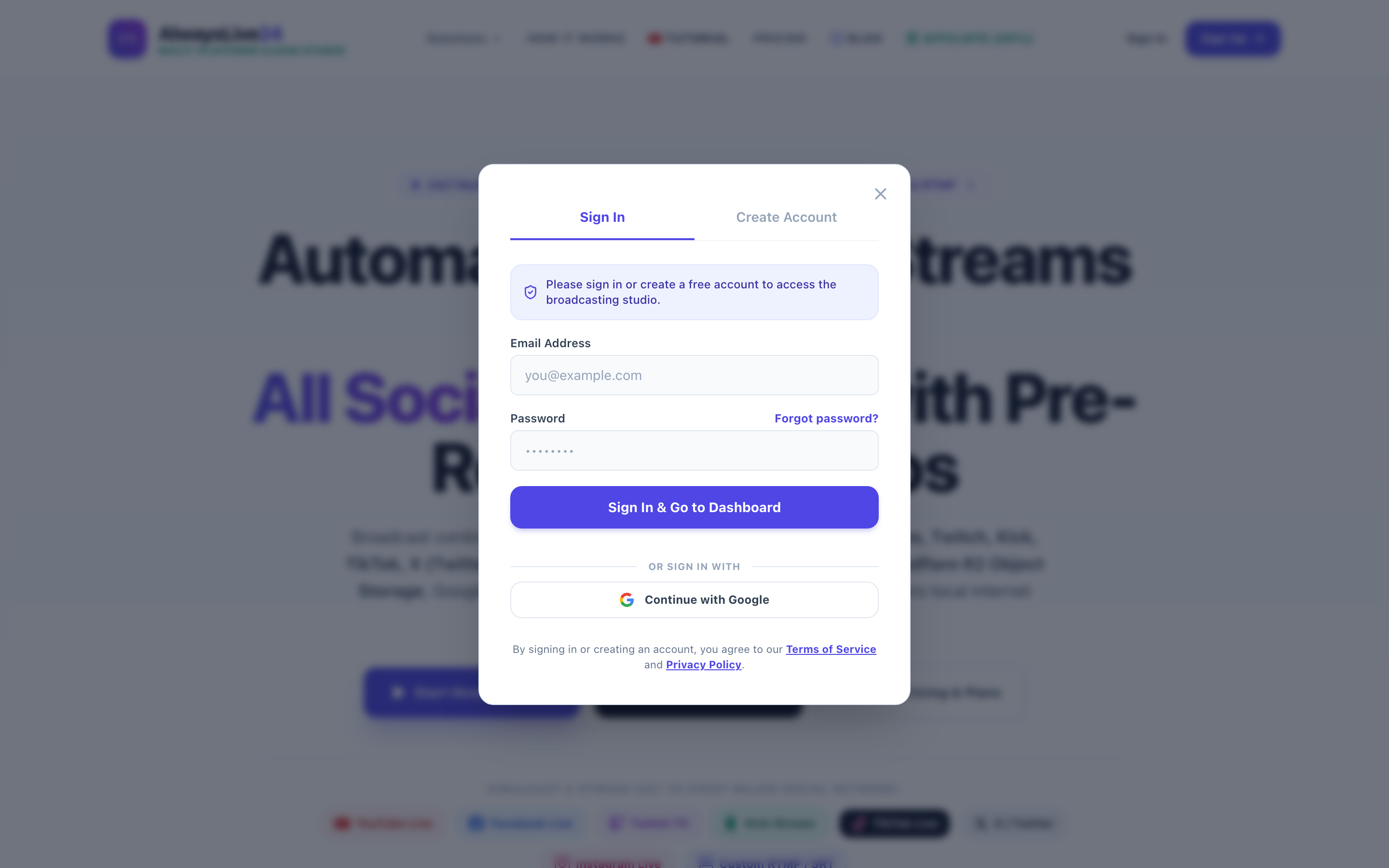
Figure 3: AlwaysLive24 Mission Control Dashboard — Real-time 30 FPS telemetry, zero local CPU consumption, and auto-recovery status.
8. Best Live Streaming Platforms Comparison Matrix (2026)
How does AlwaysLive24 compare to other popular live stream hosting and restreaming services in the market? Here is the transparent breakdown:
| Platform Feature | AlwaysLive24 | Restream.io | OneStream Live | StreamYard |
|---|---|---|---|---|
| 24/7 Infinite Looping | Yes (Native & Unlimited) | Requires $49/mo plan | Requires $39/mo plan | Limited to 1 hr pre-record |
| Starting Price | ₹0 Free / ₹49 ($1.99) Pass | $19 / month | $10 - $39 / month | $20 / month |
| Pro Plan Pricing | ₹149 ($9.99) / month | $39 / month | $39 / month | $49 / month |
| Lo-Fi Music Radio Studio | Built-in 1080p Studio | No | No | No |
| Live Video Hot-Swap | Instant Switcher | Must stop stream | Must reschedule | Manual studio click |
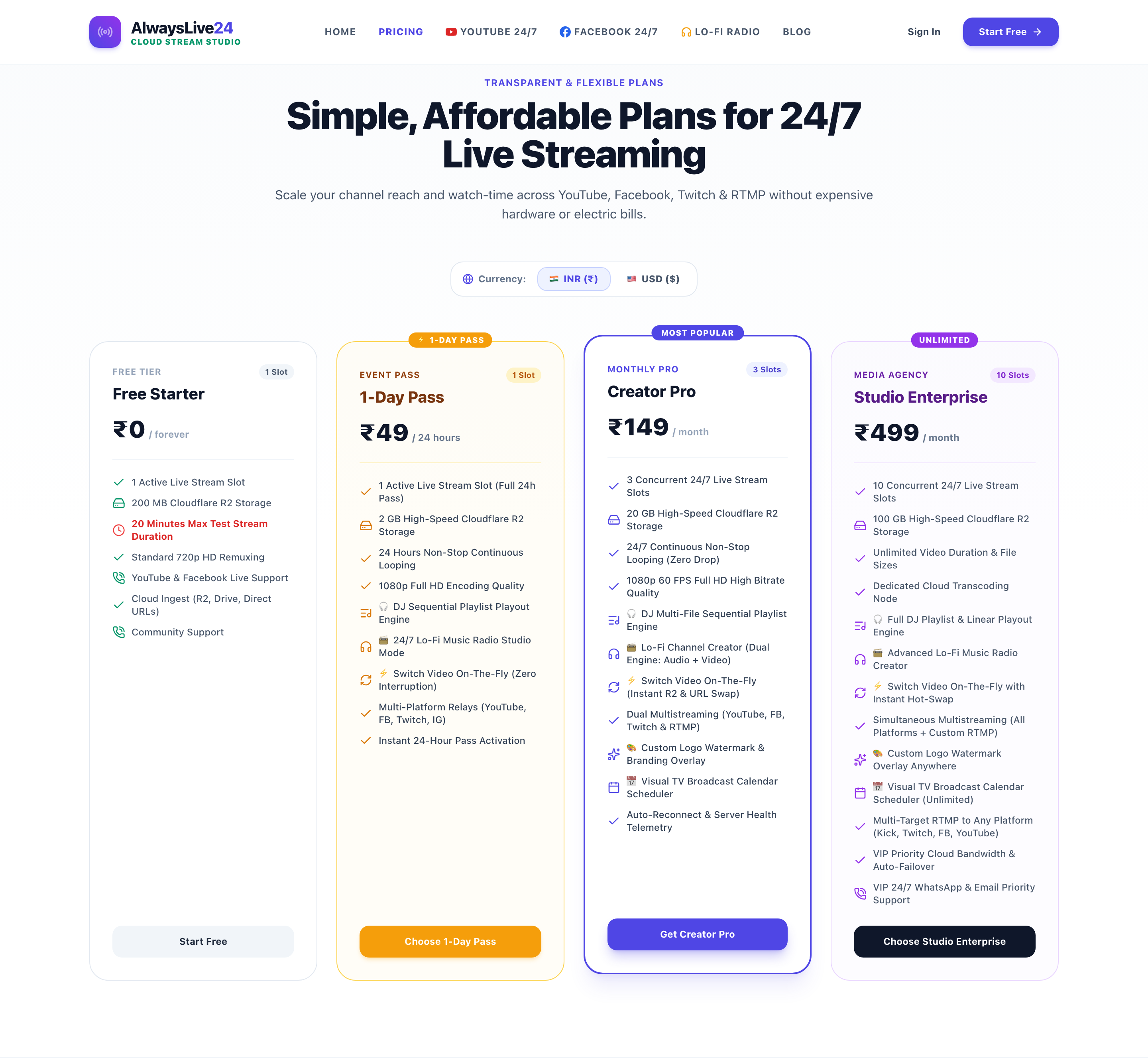
Figure 4: AlwaysLive24's creator-first pricing — Free Starter, ₹49 Day Pass, and ₹149/mo Creator Pro with unmetered cloud bandwidth.
9. Frequently Asked Questions About Live Stream Websites
Can I turn off my computer after starting the live stream?
Yes, 100%! AlwaysLive24 executes your live broadcast inside enterprise data centers equipped with 1 Gbps fiber uplinks. Once you click "Start Live Broadcast", you can shut down your PC, close your laptop lid, or turn off your smartphone. The stream will continue broadcasting 24/7 without interruption.
Does streaming pre-recorded video violate YouTube or Facebook terms?
No. Both YouTube and Facebook officially support RTMP ingestion for pre-recorded content, webinars, podcast replays, and automated radio broadcasts. As long as you own the copyright or have appropriate licensing for the music and video content you stream, 24/7 cloud live streaming is completely compliant with platform terms.
How do I stream directly from Google Drive without uploading files?
Simply paste the shareable Google Drive link into the AlwaysLive24 "Remote Video URL" field. Our cloud ingestion engine reads the video stream directly from Google's high-speed cloud network, saving you hours of file downloading and preserving your local disk space.
Can I stream to custom RTMP destinations?
Absolutely. In addition to direct presets for YouTube, Facebook, Twitch, and Kick, AlwaysLive24 provides custom RTMP/RTMPS inputs. This allows you to stream to any private video server, CDN, internal company portal, or third-party web player anywhere in the world.
Build Your 24/7 Live Stream Web Presence Today
Stop wasting electricity, straining your laptop, and worrying about dropped home internet connections. Join thousands of creators and media networks broadcasting non-stop on YouTube, Twitch, Facebook, and Kick with AlwaysLive24.
Plans from ₹49 ($1.99) Day Pass · ₹149 ($9.99)/mo Creator Pro · 100% Watermark Free