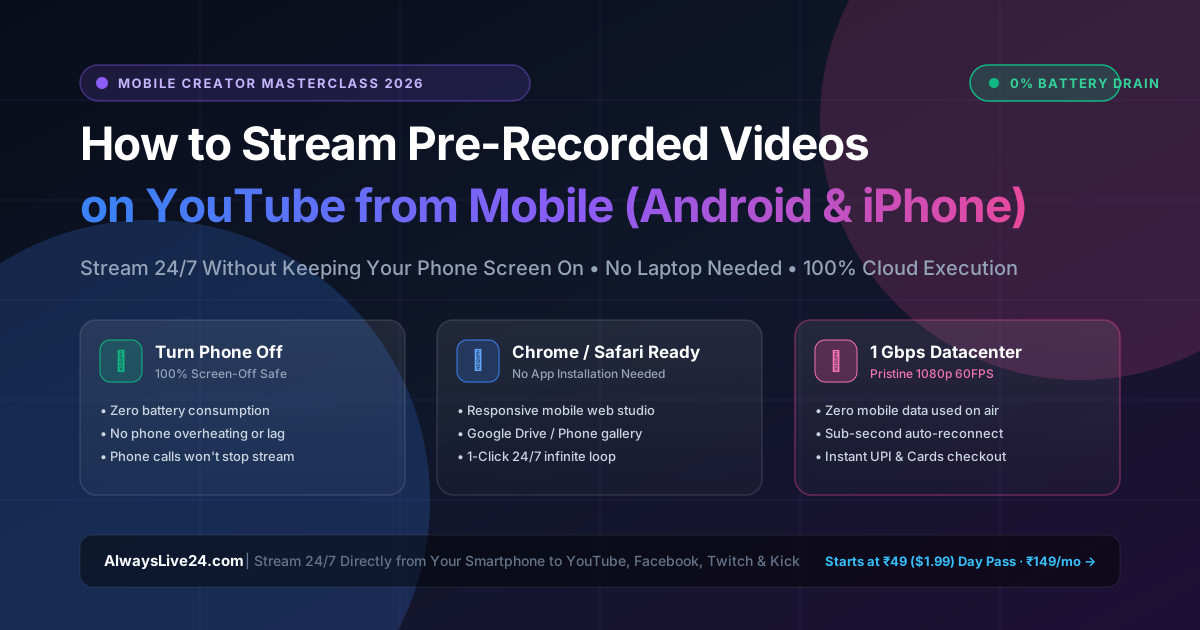
Over 75% of content creators worldwide manage their YouTube channels exclusively from a smartphone. Yet, most mobile streaming apps (like Prism Live Studio or the native YouTube app) require your phone screen to remain turned on 24/7, causing severe battery degradation, thermal overheating, and immediate stream crashes whenever an incoming phone call or Wi-Fi glitch occurs.
In 2026, you no longer need an expensive dual-PC streaming rig or a constantly running laptop to broadcast pre-recorded videos or run 24/7 infinite live streams. Using AlwaysLive24's responsive cloud mobile web studio, you can launch a broadcast from your phone browser (Chrome, Safari, or Brave) in under 3 minutes, then lock your screen or turn your phone completely off while cloud servers handle 100% of the live broadcast.
1 Why Traditional Mobile Streaming Apps Fail for Pre-Recorded & 24/7 Broadcasts
If you have tried using conventional mobile broadcasting apps like Prism Live Studio, Streamlabs Mobile, or CameraFi Live to stream pre-recorded video files from your smartphone, you have likely encountered these critical roadblocks:
- • Screen Must Stay On 24/7: Locking your phone or switching apps kills the broadcast immediately.
- • Rapid Battery Drain & Heat: Real-time hardware encoding burns through a full phone battery in 90–120 minutes.
- • Call & Notification Interruptions: Any incoming phone call, WhatsApp alert, or alarm pauses your live stream.
- • Heavy Mobile Data Bills: Streaming 1080p video from mobile consumes 2 GB to 4 GB of cellular data every hour.
- • 100% Screen-Off Safe: Setup once in mobile Chrome/Safari, then lock your phone or turn it off completely.
- • Zero Battery Consumption: Video encoding happens on cloud datacenter servers, not your phone processor.
- • Zero Mobile Data While Live: You only use data to upload your file once. Broadcast bandwidth is 100% unmetered datacenter fiber.
- • Immune to Interruptions: Phone calls, airplane mode, traveling, or lost cellular signals will never disconnect your live stream.
2 Mobile-to-Cloud 24/7 Live Stream Workflow Architecture
Here is how the mobile-to-cloud pipeline operates under the hood:
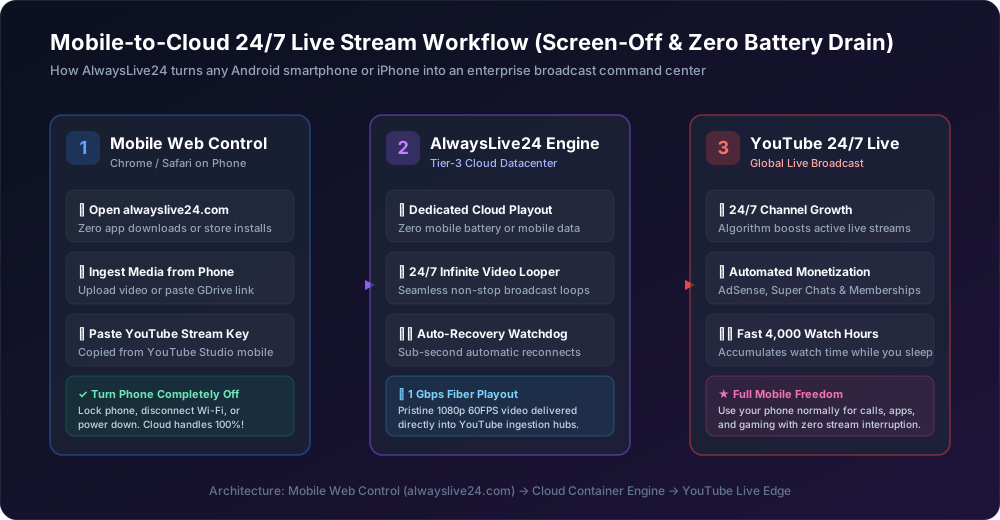
Figure 1: Autonomous cloud execution allows mobile creators to control enterprise live broadcasts from Chrome or Safari.
3 Step-by-Step Guide: How to Stream from Mobile to YouTube in 3 Minutes
1 Copy Your YouTube Stream Key from Mobile Chrome
Open Google Chrome or Safari on your phone and navigate to studio.youtube.com.
2 Open AlwaysLive24 on Your Phone & Choose Video Source
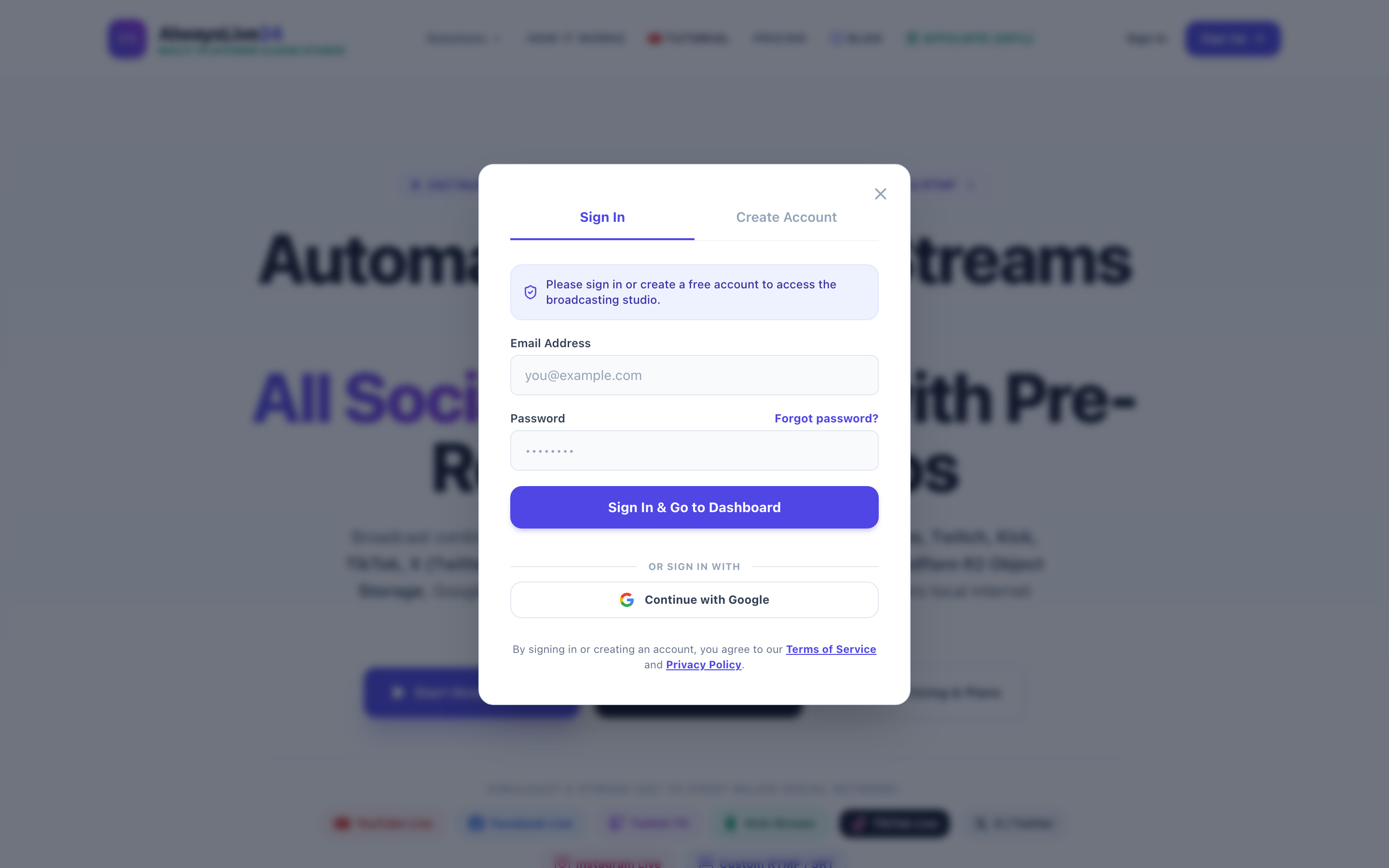
Go to AlwaysLive24.com/app on your smartphone. Log in and tap Create Live Stream. You have 3 flexible media options:
- Upload Video from Phone: Pick any MP4 video from your phone gallery or files app.
- Google Drive Direct Link: Paste a Google Drive public share link to stream massive video files without using your phone storage!
- Lo-Fi Live Radio Generator: Choose from built-in relaxing animated backgrounds and copyright-safe music.
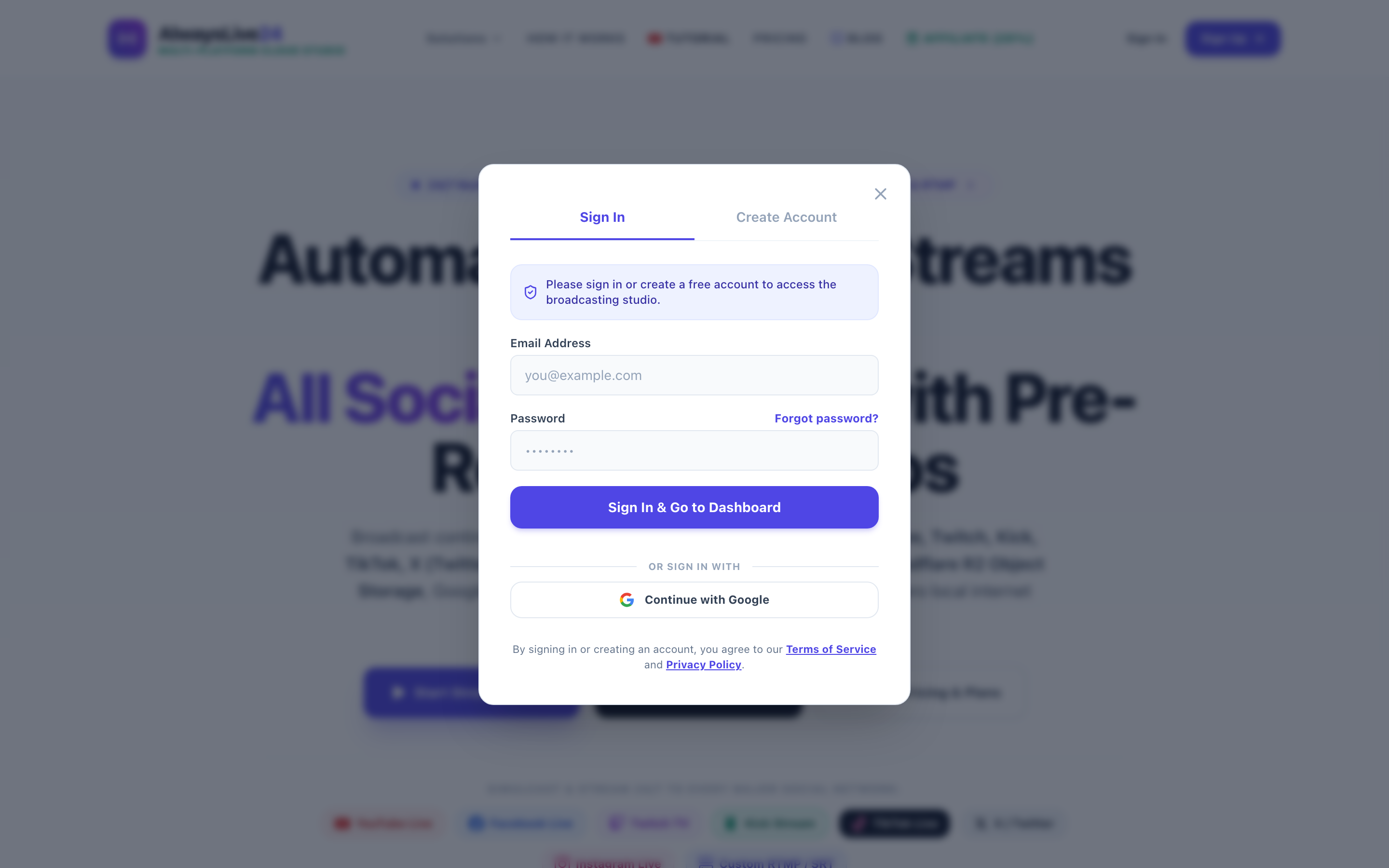
3 Paste Stream Key, Check "24/7 Infinite Loop", & Launch
Select YouTube Live, paste your copied stream key, check Loop Stream (24/7 Infinite Loop), and tap Start Live Broadcast.
4 Lock Your Phone Screen & Go About Your Day!
Once your stream card turns green with "100% Online · Auto-Recovery Active", your phone is completely free! You can close your mobile browser, take calls, play mobile games, or put your phone to sleep. Your live stream will broadcast 24/7 across YouTube without interruption.
4 Video Tutorial: How Cloud Streaming Works Without Keeping Hardware On
Watch this full engineering overview explaining how cloud containers broadcast video feeds 24/7 with zero local CPU or phone battery consumption:
5 Mobile Live Streaming Methods Compared
| Feature / Metric | Phone Live Apps (Prism / YT App) | Desktop OBS Studio | AlwaysLive24 Mobile Cloud |
|---|---|---|---|
| Device Screen State | Must stay ON continuously | PC must stay awake | ✓ 100% Screen-OFF Safe |
| Phone Battery Impact | Drains in 1.5 – 2 hours | High electricity bill | ✓ 0% Phone Battery Used |
| Mobile Data Usage | 2 – 4 GB per hour on 4G/5G | Consumes home broadband | ✓ 0MB during live broadcast |
| Incoming Call Safety | Stream freezes or crashes | N/A (PC) | ✓ 100% Uninterrupted |
| 24/7 Looping Capability | Impossible on phone hardware | Requires dedicated PC | ✓ True Unlimited 24/7 Loops |
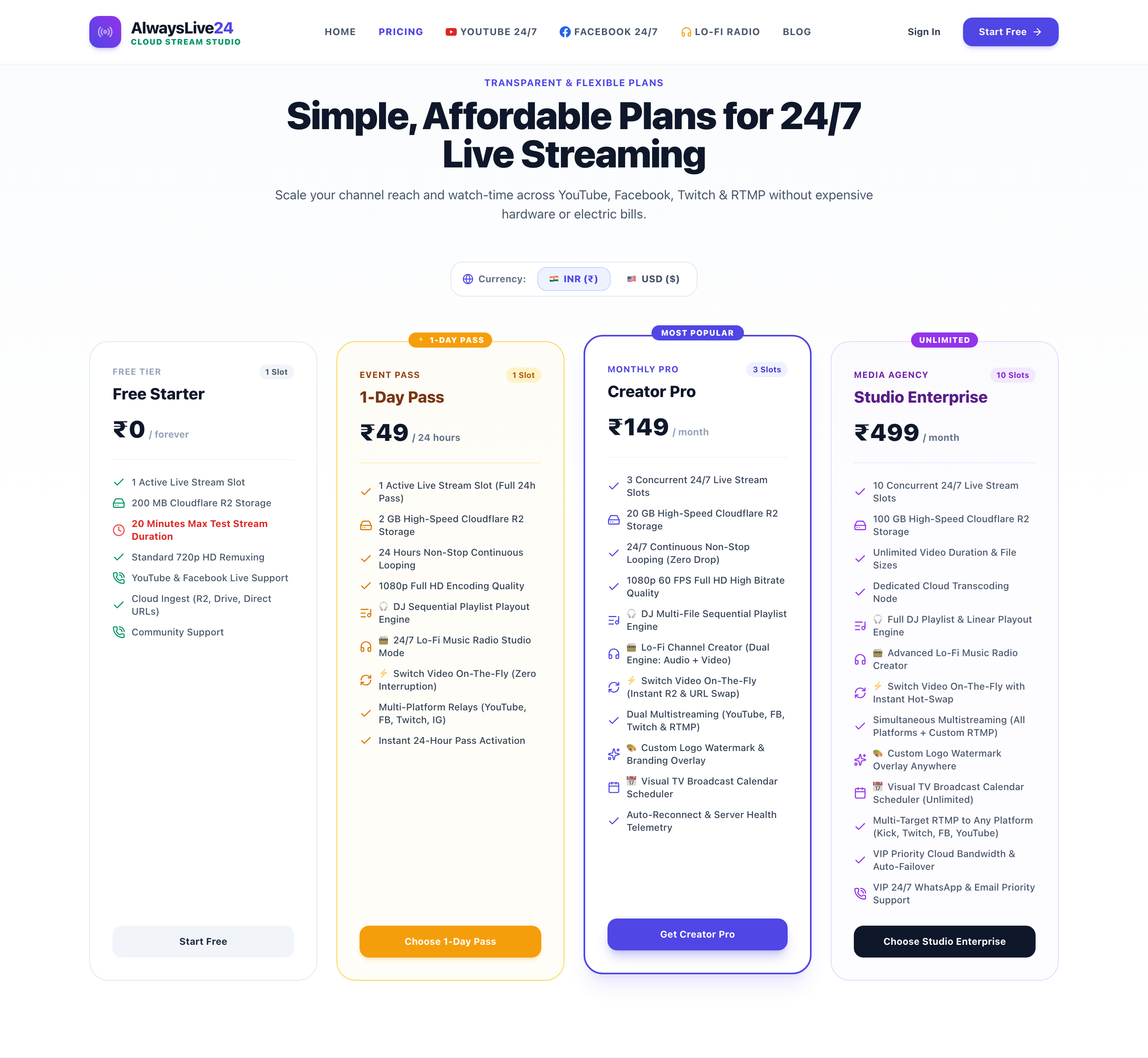
6 Micro-Commitment Pricing: Get Started on Mobile for Under ₹50 / $2
AlwaysLive24 offers instant checkout with domestic UPI (Google Pay, PhonePe, Paytm, BHIM) and international credit/debit cards:
7 Frequently Asked Questions (Mobile Streaming FAQ)
Do I need to install any app from Google Play Store or Apple App Store?
No! AlwaysLive24 is a progressive cloud web application. You simply open your existing mobile browser (Chrome on Android or Safari on iPhone) and manage everything through your dashboard.
What happens if I lose internet connection or turn on Airplane Mode on my phone?
Nothing happens to your stream! Your live stream is hosted and transmitted from high-speed Linux cloud servers. Your phone's local connectivity has zero effect on the active broadcast once it is started.
Can I stream directly to Facebook Live, Twitch, and Kick from my phone too?
Yes! AlwaysLive24 supports multi-destination RTMP broadcasting. You can stream to YouTube, Facebook Pages/Groups, Twitch, and Kick simultaneously from your phone dashboard.
Start Streaming 24/7 on YouTube from Your Mobile Phone Today
No PC, no app downloads, 0% phone battery drain. Try AlwaysLive24 Free or grab a ₹49 Day Pass now.