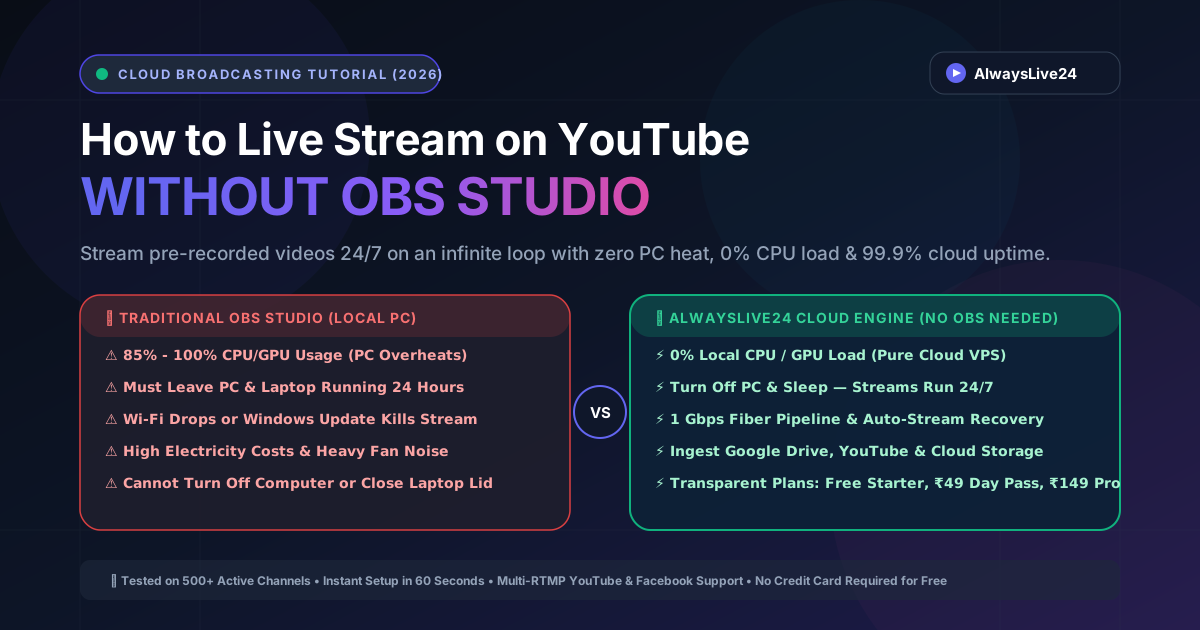
If you have ever tried running a 24/7 live stream on YouTube using OBS Studio (Open Broadcaster Software) or Streamlabs, you know the harsh reality: high electricity bills, fans screaming at 100% speed, thermal throttling, unexpected Windows updates, and dropped frames caused by micro-interruptions in your home Wi-Fi.
Keeping your physical laptop or desktop PC running day and night just to loop a pre-recorded video or broadcast a radio station puts immense strain on your hardware. More importantly, it anchors you to your computer. The moment your laptop goes to sleep, your Wi-Fi hiccups, or your graphics card overheats, your entire YouTube live stream goes offline—killing your algorithm watch-time momentum.
In this definitive 2026 guide, you will learn how to stream on YouTube without OBS. We will show you how cloud-native broadcasting lets you upload or link your video once, launch a 24/7 non-stop broadcast, and shut down your computer completely while your YouTube channel continues generating subscribers and revenue.
Table of Contents:
1. Why OBS Studio Fails for 24/7 Continuous Streaming
OBS Studio is arguably the best free desktop software for live gameplay, webcam commentary, and studio switching. However, it was never engineered to operate as a continuous 24/7 broadcast server. If your objective is streaming without pc hardware overheating, or you need to continuously stream youtube video files without babysitting an obs live broadcast, cloud infrastructure is the superior choice. Whether you want to broadcast an obs live stream, run a 24/7 continuous music station, or host a pre recorded live stream, here is why thousands of creators are transitioning from traditional OBS streaming to modern cloud live streaming solutions:
-
✕
Heavy Hardware Strain & Overheating: Encoding high-definition H.264 video locally pushes your GPU and CPU to 70%–100% utilization. Running this continuous load for days or weeks degrades your CPU silicon, causes fan bearings to wear out, and risks hardware failure.
-
✕
Home Internet Instability: Home broadband upload speeds fluctuate constantly. Even a 5-second packet loss drop will cause YouTube Studio to declare "Bad Connection" and cut your broadcast to your viewers.
-
✕
Zero Fault Tolerance: If your laptop battery dies, someone unplugs the power cord, or an automated OS restart occurs at 3:00 AM, OBS terminates immediately. There is no automated watchdog to reconnect your feed.
-
✕
Expensive Electric Bills: A gaming PC drawing 350W–500W running 24/7 consumes approximately 250–360 kWh per month, which often costs ₹2,000–₹3,500 ($30–$45) per month in electricity alone—far more than a dedicated cloud broadcasting slot.
2. Side-by-Side: OBS Studio vs AlwaysLive24 Cloud Engine
| Key Criteria | Traditional OBS Studio | AlwaysLive24 Cloud SaaS |
|---|---|---|
| Computer State | Must be ON 24/7 (Cannot sleep) | Turn PC OFF, sleep, or travel |
| Local CPU / GPU Usage | 70% – 100% constant load | 0% (Processed in cloud VPS) |
| Network Connection | Home Wi-Fi (Prone to drops) | 1 Gbps Unmetered Data Center Fiber |
| Auto-Stream Recovery | No (Manual restart required) | Yes (Instant automatic reconnect) |
| Video Ingest Options | Local files only | Google Drive, Cloudflare R2, Direct URLs |
| Multi-Platform Relay | Requires extra plugins & 2x bandwidth | Built-in Multi-RTMP (YouTube + Facebook) |
Live studio dashboard in AlwaysLive24: Active streams broadcast directly from isolated cloud containers with real-time status and automatic recovery.
3. Official Video Setup Tutorial (2026)
Prefer watching a video walkthrough? Follow our official step-by-step setup tutorial below to see how to connect your YouTube channel and launch your first live stream in less than 2 minutes:
4. Step-by-Step: How to Stream to YouTube Without OBS
Setting up a cloud stream takes less than 60 seconds. You do not need to install software, tweak bitrate encoders, or configure complex firewall ports.
Step 1: Grab Your Stream Key from YouTube Studio
Open YouTube Studio, click Create in the top right, and select Go Live. Under your stream settings, you will see your Stream URL (rtmp://a.rtmp.youtube.com/live2) and your private Stream Key. Copy your stream key.
Step 2: Connect Your Video Source (No Local Disk Needed)
Log in to AlwaysLive24 Studio and click Create Live Stream. You can choose any of the following video ingest methods:
- Direct Google Drive Link: Simply paste your publicly accessible Google Drive video link.
- Cloudflare R2 Storage: Upload high-bitrate MP4/MKV files directly to your private cloud media library.
- Direct MP4 / HLS Link: Ingest any direct media URL across the web.
AlwaysLive24 Stream Creator: Enable the "Loop Stream (24/7 Infinite Loop)" checkbox to keep your broadcast live non-stop.
Step 3: Toggle 24/7 Infinite Loop & Go Live
Check the Loop Stream (24/7 Infinite Loop) box. Select your remuxing mode (choose Fast Remux Copy for 0% re-encoding delay, or Smart Transcode for aspect ratio optimization). Click Go Live Now. Within 3 to 5 seconds, your video will appear live in your YouTube Studio dashboard.
5. AlwaysLive24 Real Pricing & Transparent Plans
Unlike legacy streaming platforms that hide their pricing or demand expensive commitments upfront, AlwaysLive24 offers a completely transparent multi-currency pricing structure with zero watermarks on all paid plans:
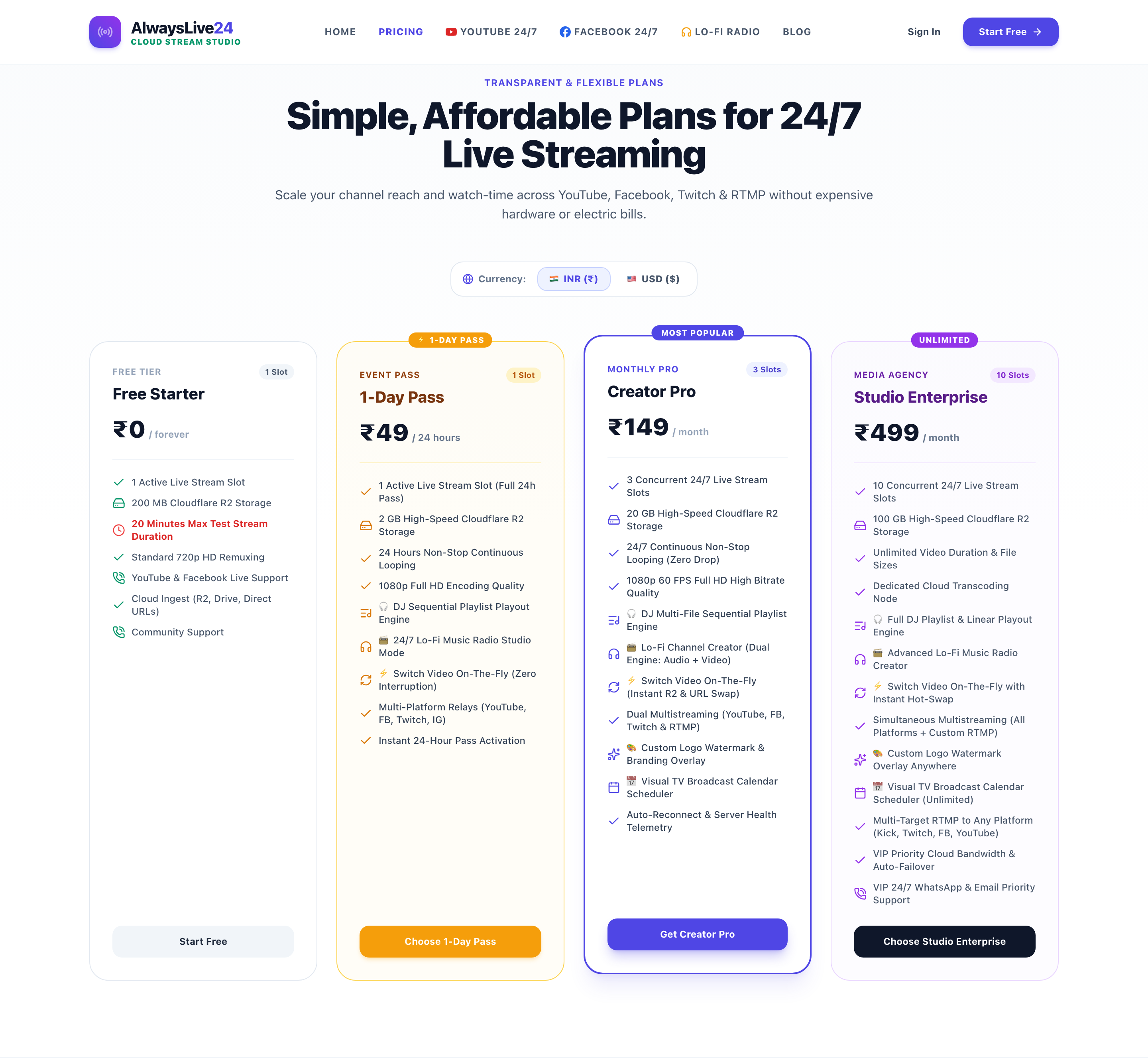
AlwaysLive24 transparent pricing: Available in both Indian Rupee (INR) and US Dollar (USD) with instant UPI and international card activation.
Free Starter
- ✔ 1 Live Stream Slot
- ✔ 200 MB Cloud Storage
- ⏱ 20 Min Stream Cap (Test Mode)
- ✔ 720p HD Video Quality
- ✔ YouTube & Facebook Support
1-Day Pass
- ✔ 1 Live Stream Slot (24h Access)
- ✔ 2 GB Cloud Storage
- ✔ 24 Hours Non-stop Looping
- ✔ 1080p Full HD Encoding
- ✔ DJ Multi-track Sequential Playout
- ✔ Zero Watermarks
Creator Pro
- ✔ 3 Concurrent 24/7 Stream Slots
- ✔ 20 GB High-Speed Cloud Storage
- ✔ 24/7 Continuous Non-stop Loop
- ✔ 1080p 60 FPS Full HD Encoding
- ✔ Multi-RTMP (YouTube + Facebook)
- ✔ Custom Logo Watermark Overlay
Studio Enterprise
- ✔ 10 Concurrent 24/7 Stream Slots
- ✔ 100 GB Cloud Storage
- ✔ Dedicated Transcoding Node
- ✔ Visual TV Broadcast Calendar
- ✔ Unlimited File Size & Duration
- ✔ VIP 24/7 WhatsApp Support
6. Frequently Asked Questions (FAQ)
Can I turn off my computer after starting the stream?
Yes, absolutely. Once you click "Go Live", the stream runs on isolated high-performance cloud servers. You can turn off your PC, close your laptop, or lose power at home—your YouTube stream will remain online without any disruption.
Does YouTube allow streaming pre-recorded videos?
Yes. YouTube fully supports broadcasting pre-recorded content via RTMP, provided you own the rights to the video and audio content being streamed. Many of the largest channels (e.g. music radio stations, news channels, podcast re-runs) utilize pre-recorded loops.
How is AlwaysLive24 cheaper than running OBS on my PC?
Running a gaming laptop or PC 24 hours a day consumes between 250 and 360 kWh of electricity each month, costing ₹2,000 to ₹3,500 ($30 to $45). AlwaysLive24 gives you a dedicated 24/7 cloud broadcast slot for just ₹49 (1-Day Pass) or ₹149/month (Creator Pro), saving money while protecting your physical hardware from thermal damage.
What happens if my stream disconnects?
AlwaysLive24 has an automated watchdog auto-recovery engine that monitors your stream health every 5 seconds. If YouTube or the network drops a packet, our system instantly attempts an automatic reconnect without terminating your live broadcast.
Ready to Stream 24/7 on YouTube Without Overheating Your PC?
Join over 500+ creators who automated their 24/7 channels with AlwaysLive24. Upload your video, paste your stream key, and go live instantly.