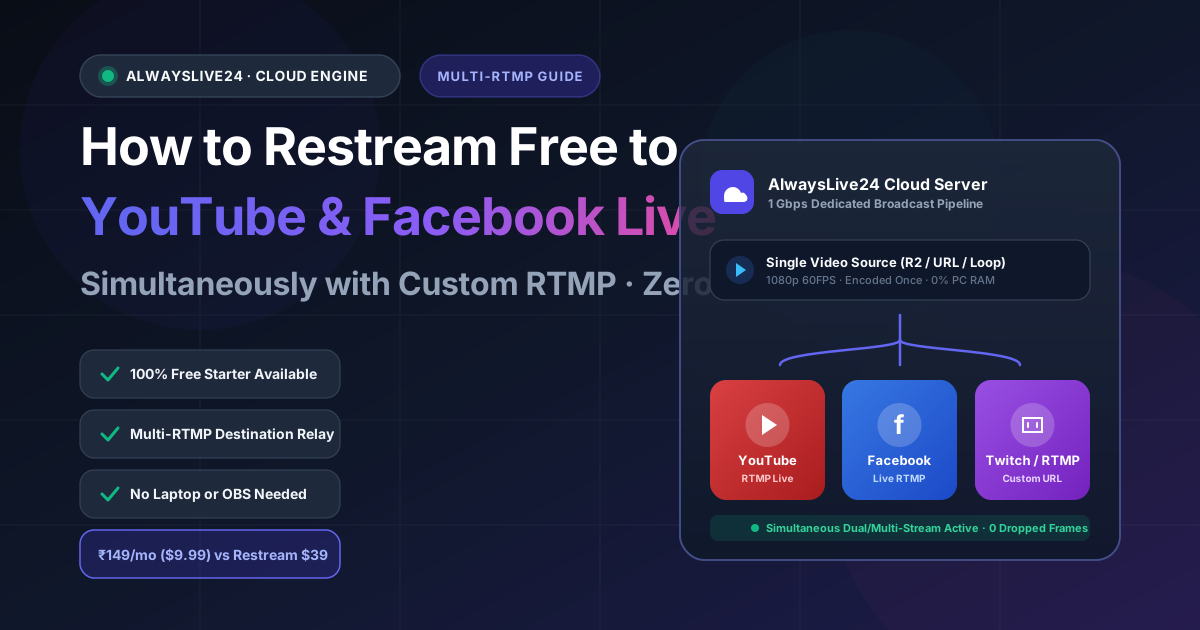
Broadcasting your video to a single platform in 2026 is leaving more than 50% of your potential audience, watch time, and ad revenue on the table. When you stream simultaneously to YouTube Live and Facebook Live (plus Twitch, Kick, or custom RTMP servers), you instantly tap into separate discovery algorithms without doubling your production workload.
However, creators looking for a free restream solution quickly hit a brick wall. The market's legacy multi-streaming tools either force an ugly, brand-damaging watermark on your stream, limit your stream duration, or demand expensive monthly subscriptions between $19 and $39/month just to schedule pre-recorded broadcasts.
In this comprehensive guide, we will break down exactly how to stream to YouTube, Facebook, and custom RTMP endpoints simultaneously without burning your PC CPU, without installing complex OBS plugins, and without paying exorbitant fees.
What You Will Learn in This Multi-RTMP Guide:
1. What is Multi-RTMP Cloud Streaming and How Does It Work?
RTMP (Real-Time Messaging Protocol) is the universal protocol used by YouTube, Facebook Live, Twitch, Kick, and LinkedIn to receive video data from broadcasting software.
When you broadcast traditionally using desktop software like OBS Studio, your home computer must encode the video and send individual data packets over your home internet. If you want to stream to two platforms at once (e.g. YouTube at 4,500 kbps + Facebook at 4,000 kbps), your home internet must sustain an upload speed of at least 12 to 18 Mbps non-stop. Any momentary Wi-Fi spike or bandwidth drop causes dropped frames and stuttering across both platforms.
The Cloud Multi-Stream Solution:
Instead of encoding multiple streams on your local computer, AlwaysLive24 runs on enterprise cloud servers connected to 1 Gbps unmetered network pipelines. Your video is ingested once and then fanned out simultaneously to YouTube, Facebook, and custom RTMP endpoints at the server level. Your PC stays at 0% CPU load and you can turn your computer off completely while the broadcast runs 24/7.
2. Transparent Pricing: AlwaysLive24 Real Plans vs Restream.io & OneStream
Many creators are shocked when they find out that tools like Restream.io and OneStream charge steep monthly fees just to allow pre-recorded video looping or remove their promotional watermark. Here is an honest, line-by-line comparison of AlwaysLive24's real active pricing plans against industry competitors:
| Plan / Provider | Price (INR & USD) | 24/7 Loop Without PC? | Multistream Destinations | Watermark Free? |
|---|---|---|---|---|
| FREE AlwaysLive24 Free Starter | ₹0 / $0 Free Forever | ✅ Cloud Remux (20-min test cap) | 1 Target Slot (YouTube / FB) | ✅ Yes (No Watermark) |
| PASS AlwaysLive24 1-Day Event Pass | ₹49 / $1.99 (Single Day) | ✅ 24 Hours Continuous Non-Stop | Multi-Platform Relay Support | ✅ 100% Watermark Free |
| POPULAR AlwaysLive24 Creator Pro | ₹149 / mo ($9.99/mo) ₹1,490/yr ($99/yr) |
✅ 24/7 Infinite Non-Stop (3 Slots) | Dual Multistreaming (YouTube, FB, Twitch, RTMP) | ✅ 100% Watermark Free |
| STUDIO AlwaysLive24 Studio Enterprise | ₹499 / mo ($29.99/mo) ₹4,990/yr ($299/yr) |
✅ 24/7 Infinite Non-Stop (10 Slots) | Simultaneous All Platforms + Custom RTMP | ✅ Custom Logo Watermark Overlay |
| Restream.io Free | ₹0 | ❌ No (Requires PC running OBS) | 2 Platforms only | ❌ Forced "Restream" Watermark |
| Restream Standard / Pro | $19 – $39 / month (₹1,600 – ₹3,300/mo) |
Pre-recorded (Limited hours) | 5+ Platforms | Watermark Removed on Paid |
| OneStream Live Standard | $39 – $89 / month (₹3,200 – ₹7,400/mo) |
Pre-recorded Looping | 3 Platforms | Watermark Removed on Paid |
*Pricing verified from live production database on October 19, 2026. AlwaysLive24 supports instant payment via UPI, Credit/Debit cards, Net Banking, and PayPal.
3. Why Local OBS Multi-RTMP Plugins Crash and Drop Frames
If you've searched YouTube for "free restream tutorial", you have probably seen tutorials recommending the third-party OBS Multi-RTMP plugin (by sorayuki). While that plugin is open-source, here is what those tutorials don't tell you about running it locally:
-
✕
Triple Bandwidth Drain: If you broadcast to YouTube, Facebook, and Twitch simultaneously, OBS must send 3 full copies of the video across your home Wi-Fi. If your upload speed dips for even 3 seconds, all 3 streams buffer or cut off.
-
✕
Thermal Throttling & Hardware Fatigue: Encoding a 1080p 60FPS stream for 24 hours non-stop pushes your GPU/CPU to 70°C–85°C. Laptops and desktops quickly overheat, causing frame drops and fan noise.
-
✕
PC Must Stay On 24/7: If Windows triggers an automatic update, your internet disconnects, or your laptop sleeps, your stream immediately terminates on all platforms.
4. Step-by-Step Setup: Restream Free to YouTube & Facebook Live
With AlwaysLive24's dedicated cloud architecture, setting up simultaneous multi-streaming takes under 3 minutes. Follow these simple steps:
Step 1: Obtain Your YouTube Live RTMP Credentials
- Go to YouTube Studio and click Go Live in the top right.
- Under the Stream tab, locate your Stream URL (default:
rtmp://a.rtmp.youtube.com/live2). - Click Copy next to your private Stream Key. Keep this confidential.
Step 2: Obtain Your Facebook Live RTMP Credentials
- Go to Facebook Live Producer on your Facebook Page or Profile.
- Select Streaming Software as your video source.
- Copy the Server URL (
rtmps://live-api-s.facebook.com:443/rtmp/) and your Facebook Stream Key.
Step 3: Configure Multi-Stream in AlwaysLive24 Studio
- Log into your dashboard at app.alwayslive24.com (Free Starter plan or higher).
- Click Create New Stream to open the stream configuration studio.
- Select YouTube as your primary destination, and paste your YouTube RTMP Server & Stream Key.
- Under Additional Multi-Stream Destinations, click + Add Target. Select Facebook (or Custom RTMP) and paste your Facebook RTMP URL and Stream Key.
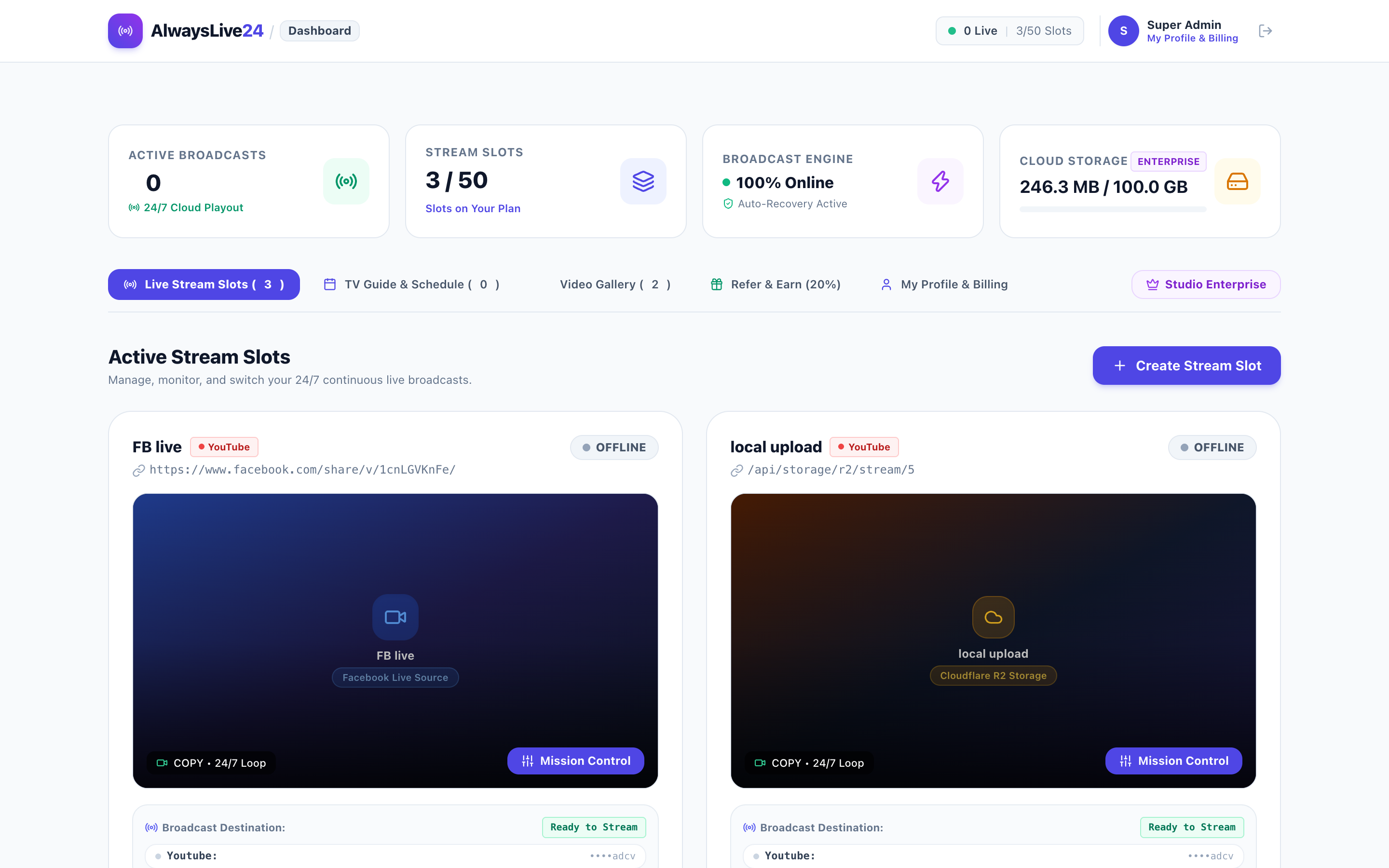
Step 4: Choose Your Media Source & Turn On 24/7 Looping
You can choose from 3 high-speed video sources:
- Cloud Library Upload: Upload directly to your Cloudflare R2 storage vault.
- Remote URL Upload: Paste a direct MP4, MKV, MP3, or Google Drive link — our 1Gbps server downloads it into your library automatically.
- DJ Playlist & Lo-Fi Mode: Queue multiple sequential tracks or combine chill beat audio with background video loops.
Check the Loop Stream (24/7 Infinite Loop) box, choose your encoding preset (Original Stream Copy or 1080p 60FPS), and click Start Live Broadcast!
5. Pro Capabilities: On-The-Fly Video Swap & Custom Watermarking
Unlike conventional software where changing your broadcast video requires stopping the stream and generating a new YouTube live key, AlwaysLive24 includes enterprise linear playout tools built right in:
Switch Video On-The-Fly
Change your active video file in real time without cutting your YouTube or Facebook live connection. Your audience experiences zero buffering and your stream URL stays identical.
Custom Brand Watermarking
Upload your channel logo (PNG) and overlay it dynamically on top-right, bottom-right, or any corner with custom size and opacity controls to protect your content.
6. Frequently Asked Questions (FAQ)
Can I restream to YouTube and Facebook simultaneously for free?
Yes! With AlwaysLive24's Free Starter Plan, you can test cloud live streaming in 720p HD with zero cost and no credit card required. For non-stop 24/7 continuous dual-multistreaming, Creator Pro is available for only ₹149/month ($9.99/mo).
Do I need to leave my computer or laptop turned on?
No. The entire stream runs on AlwaysLive24's cloud servers. Once you click "Start Live Broadcast", you can close your browser, shut your laptop, or turn off your PC completely. Your broadcast will continue streaming to YouTube and Facebook 24/7.
What happens if YouTube or Facebook temporarily resets the connection?
AlwaysLive24 has an automated self-healing Watchdog & Auto-Recovery Engine. If a social platform experiences a momentary network hiccup, our server automatically reconnects within 3 seconds so your live session does not drop.
Can I broadcast to custom RTMP destinations like Kick, Twitch, or Trovo?
Yes! On Creator Pro and Studio Enterprise tiers, you can input any custom RTMP server URL and stream key to broadcast simultaneously to Kick, Twitch, Trovo, Twitter/X, and private CDN servers.
Ready to Multistream to YouTube & Facebook 24/7?
Start broadcasting in under 3 minutes with zero PC resource drain. Test with the Free Starter Plan or unlock full 24/7 multi-streaming with Creator Pro for just ₹149/month ($9.99).